|
Chapter 2 |
2. Creating Connections
2.1 Creating a Connection Definition
The screen shot below shows the main screen of WOW. This is the screen that will appear after you have successfully signed on to WOW.
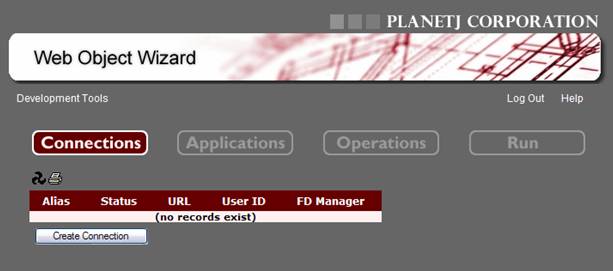
The first screen the application builder will see after successfully signing on to WOW.
Before creating an application, a database connection must be defined. This connection can be to any database that is compatible with WOW. To set up the new connection, click on the “1 Setup Connections(s)” button on the left side of the main screen. Then click on the “Create Connection” button below the list of connections. Below is an example of the Connection creation screen, along with the default settings for this screen.
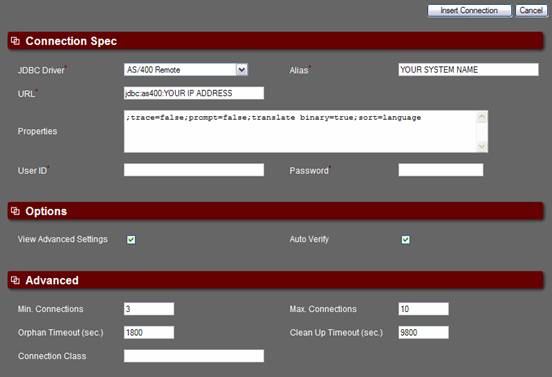
Before creating an application with WOW, you first must create a connection.
Connection Spec
Alias (Required Field) – Any text which uniquely identifies the database connection. Entries should be easily associated with the connection being created. The maximum entry is 50 characters. The Connection Alias is used when looking up field descriptors and normally should not be edited after its creation.
URL (Required Field) – The URL of the JDBC database to be connected to. This URL will be specific to the type of database you are connecting to. This URL is where your database information is located and is discussed in greater detail in the Connecting to Databases section.
JDBC Driver (Required Field) – The type of JDBC you will be using to connect to the database. This specifies the specific class that you will use to access the database.
- AS/400 Native – use when your data resides on the AS/400 and your application runs directly on the AS/400.
- AS/400 Remote – use when your data resides on the AS/400 and your application server does not run reside on the AS/400.
- AS400 Command & Program Call [ For future support ]
- DB2 (Local) – use when your data resides in DB2 and your application runs on the same server that contains DB2.
- DB2 (Remote) – use when your data resides in DB2 and your application runs on a different server.
- MS Access/Excel (ODBC) – use when your data resides in an Excel spreadsheet or a MS Access database connected through a System DSN.
- MySQL – use when your data resides in MySql.
- PostgreSQL – use when your data resides in PostgreSQL.
- ORACLE (Remote) – use when your data resides in Oracle.
- SQL Server – use when your data resides in Microsoft’s SQL Server.
Properties – Specific properties that are set in the specific connection you have created. Refer to each JDBC Driver for more information.
User ID (Required Field) – An ID that will be used to connect to a specific database. This must be a valid user ID and password for the database that you will be connecting to. All database operations will be executed through this user ID.
Password (Required Field) – The password which corresponds to the user ID.
Options
View Advanced Settings – Show the Advanced settings section.
Auto Verify – Automatically verifies connection settings by attempting to connect to the database upon insertion. This will return an error if it is unable to connect.
Advanced
Min. Connections (Required Field) – The number of connections that will be created when the application first starts up. The default is two and the maximum is ten.
Max Connections (Required Field) – The maximum number of simultaneous connections allowed for the database connection. The default is ten. The maximum number of connections used can have a significant effect on your performance. This number will vary based on the power of the system.
Orphan Timeout (Required Field) – The maximum number of seconds that a database transaction is allowed to take. When a database transaction takes longer than this value, it is terminated and the connection is made available for a new transaction. This prevents a database transaction from hanging and permanently tying up a connection.
Clean Up Timeout (Required Field) – After the specified amount of seconds, the program will close and then reopen its connections. Many databases only allow connections to remain open for a certain amount of time. This setting helps ensure that a connection won’t time out, and if this occurs, it will be reopened.
2.1.1 Specifying a Library List for a Connection
One of the properties that can be specified for a connection is the library list to be used. This can be especially useful when the connection is used for calling a stored procedure or SQL trigger. To specify the library list, append the "libraries" property to the connection's "Properties" field.
For example, the connection properties might be changed to:
;prompt=false;trace=false;libraries=*LIBL,lib1,lib2,lib3
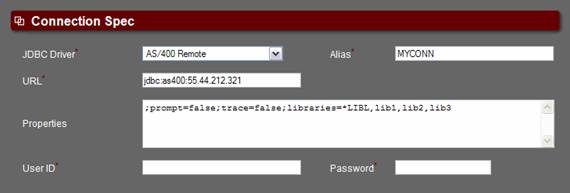
With this example, the connection will append libraries lib1, lib2 and lib3 to the end of the default library list.
NOTE: This example applies to the iSeries (AS/400). For other platforms, refer to the appropriate JDBC documentation.
2.2 Connecting to Different Databases
WOW can connect to any database that supports a JDBC 2.0 driver. This allows WOW applications to seamlessly combine data from any corporate data repository regardless of its location and RDBMS vendor. Below is a list of specific databases and what URL’s are needed to connect to each of them. Replace the IP address listed with the IP address used to connect to your own database:
AS/400(iSeries): jdbc:as400:66.166.144.20
SQL Server: jdbc:microsoft:sqlserver://66.166.144.20
Oracle: jdbc:oracle:thin:@66.166.144.20:1521:METADATA
** Replace METADATA with the name of your Oracle database name
DB2: jdbc:db2://66.166.144.20/DB_NAME
** Replace DB_NAME with the name of your DB2 database name
MySQL: jdbc:mysql://localhost/pjsys63
** Replace pjsys63 with the name of your MySQL database name
ODBC: jdbc:odbc:Data Source Name
** Replace data source name with the name of your data source name
** Note - The DSN must be a system DSN and that DSN must point to the desired Access database on your machine
PostgreSQL: jdbc:postgresql:// 66.166.144.20/DB_NAME
** Replace DB_NAME with the name of your PostgreSQL database name
Consult each JDBC provider’s documentation for specific connection properties.
The import properties that are unique to MySQL are the URL, Driver, User ID, and Password. They must be exactly as follows:
URL = jdbc:mysql://localhost/pjsys64 (Where localhost is your IP address and pjsys64 is your database)
JDBC Driver = MySQL (com.mysql.jdbc.Driver)
User ID = WOW
Password = wow
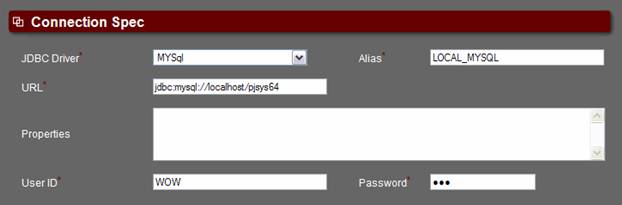
Connecting to a MySQL database
**NOTE** User ID and Password are case sensitive in MySQL.
If you want to use different properties for User ID and Password, you will have to add records in mysql.user table. Please consult the MySQL’s User Manual for details on how to create new user accounts.
The import properties that are unique to ORACLE are the URL, Driver, User ID, and Password. They must be exactly as follows:
URL = jdbc:oracle:thin:@localhost:PJSYS64 (Where localhost is your IP address and PJSYS64 is your database)
JDBC Driver = ORACLE (Remote) (oracle.jdbc.driver.OracleDriver)
User ID = Any valid user id.
Password = Any valid password
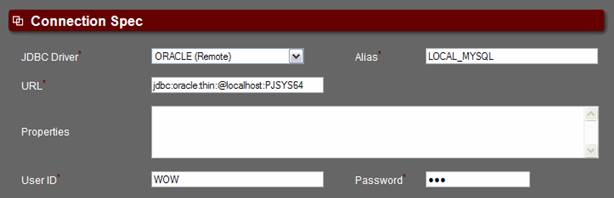
Connecting to Oracle
**Note: Since Oracle has a different jar for each of their releases, Oracle users may have to manually upgrade their JDBC jar with the version for their database. WOW’s default ojdbc14.jar needs to be the same one as is included in your installed Oracle version.
E.g. oracle/product/10.2.0/db_1/jdbc/lib/ojdbc14.jar.
Connecting to Microsoft SQL Server
WOW supports SQL Server 2000 and above which is supported with the latest JDBC Driver. You may have connection problems if trying to connect to a version before MS SQL Server 2000.
URL:
jdbc:microsoft:sqlserver://hostname:port;databasename=dbname
Example: jdbc:microsoft:sqlserver://192.169.1.71:1433;databasename=Northwind
- 1433 is the default port and is optional
- databasename can be used to identify a particular database instance
- WOW must be able to resolve to the host name or specified IP
Connecting to Microsoft Access and Excel
WOW supports Microsoft Access and Excel 2000 and above which is supported with the latest JDBC-ODBC Driver. You may have connection problems if trying to connect to a version before MS Access/Excel 2000. To connect to Access or Excel you must create an ODBC System Data Source on the same system that you have your application server installed. This DSN must be pointed at your desired Access Database or Excel Worksheet.
URL: jdbc:odbc:data_source_name
Example: jdbc:odbc:Northwind (Connecting to MS sample Access database Northwind)
- WOW must be able to resolve the data source name.
2.3 Working with Connections
You can manipulate your database connections, using the direct action buttons, as well as other actions set on each connection row. Below is a screen shot of the Connections screen with brief descriptions of available actions:
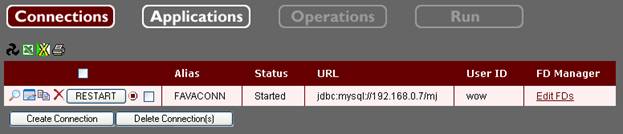 Figure 2-5 The
Connections screen used for navigating and using connections within WOW
Figure 2-5 The
Connections screen used for navigating and using connections within WOW
 View Connection -
Allows a user to view a selected connection that has been previously created.
View Connection -
Allows a user to view a selected connection that has been previously created.
 Edit Connection –
Allows changes to be made to the selected database connection.
Edit Connection –
Allows changes to be made to the selected database connection.
 Copy Connection –
Allows user to copy the selected database connection.
Copy Connection –
Allows user to copy the selected database connection.
 Delete Connection – Deletes
the selected connection. If you delete a connection you must make sure any
operations that reference that connection are updated to reference a working
connection. (See the Operations chapter
for detailed information on how operations reference connections.) Note that
deleted connections cannot be restored.
Delete Connection – Deletes
the selected connection. If you delete a connection you must make sure any
operations that reference that connection are updated to reference a working
connection. (See the Operations chapter
for detailed information on how operations reference connections.) Note that
deleted connections cannot be restored.
 Stop Connection – Closes
down the selected connection. All cached field descriptors and rows related to
this connection will be cleared. This link should be used with caution; any
applications running that use this connection (including the Field Descriptor
Manager) will no longer function once the connection is stopped.
Stop Connection – Closes
down the selected connection. All cached field descriptors and rows related to
this connection will be cleared. This link should be used with caution; any
applications running that use this connection (including the Field Descriptor
Manager) will no longer function once the connection is stopped.
 Start Connection – Starts
the selected connection if it isn’t already started
Start Connection – Starts
the selected connection if it isn’t already started
 Restart Connection – Shuts
down the connection (if it is started) and then restart it. All cached field
descriptors and rows related to this connection will be cleared.
Restart Connection – Shuts
down the connection (if it is started) and then restart it. All cached field
descriptors and rows related to this connection will be cleared.
 Create Connection – Creates
a connection. Creating a database connection is covered in the previous section.
Create Connection – Creates
a connection. Creating a database connection is covered in the previous section.
 Delete Connection(s) – Deletes
selected connection(s).
Delete Connection(s) – Deletes
selected connection(s).
 Manager Field Descriptors – Opens
a new browser window containing the Field Descriptor Manager application for
the selected connection. For more information on field descriptors, see the Field Descriptors chapter.
Manager Field Descriptors – Opens
a new browser window containing the Field Descriptor Manager application for
the selected connection. For more information on field descriptors, see the Field Descriptors chapter.