|
Chapter 4 |
4. Creating User Operations
4.1 User Operations
Each application created with WOW contains different Operations. These Operations are the backbone of any application created with WOW. There are many different types of Operations that can be created with WOW. Examples of these types are: SQL, HTML Code, and Execution Group. Each available Operation type will be described in greater detail in this chapter.
To add operations to an application, select the application name from the list of applications on the main menu. Next, click on the “3. Setup Operation(s)” link on the top of the page. This will display all of the operations in the application. Choose the “Create Operation” button to create a new operation.
The Create Operation Screen allows you to specify several different attributes of the operation.
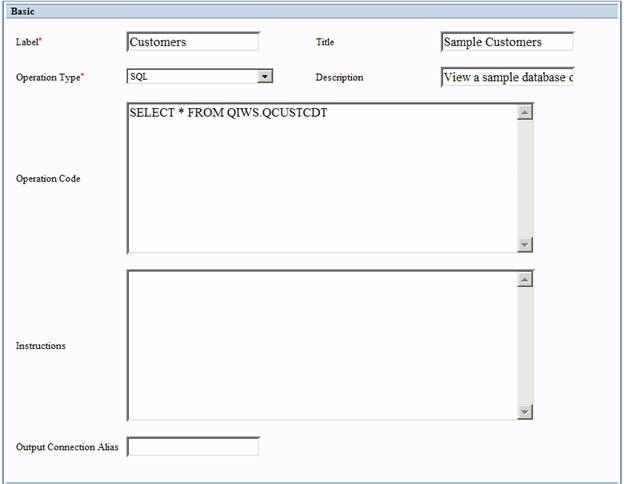
Figure 4-1 The Create Operation screen allows you to create Operations to use within the application builder’s application.
Basic
Label – A unique name identifying the application for the user that appears in a list with all of the operations that have been created for the application.
Title - The title that will be displayed when the user is viewing the list of operations.
Operation Type (Required Field) – The type of operation you would like to use. All available Operation types will described in later sections.
Description – A brief description of the purpose of the operation.
Operation Code (Required Field) – The actual code that will run when the user selects this operation. For SQL Operations, this must be a valid SQL statement for the database the application is connecting to. Incorrect code may cause WOW to return unfavorable results.
Instructions – Text that will be shown to the user when the Operation is executed. This text is shown if the operation is an SQL statement that contains “where <column_name> = ?” where <column_name> is a valid column name from the indicated table. It may include details on what the operation does, how it is run, etc. This field may include actual HTML code to enhance the formatting. For example, you may want to make the instructions stand out by specifying the text be heading 1: <H1>Instructions for the Operation</H1>.
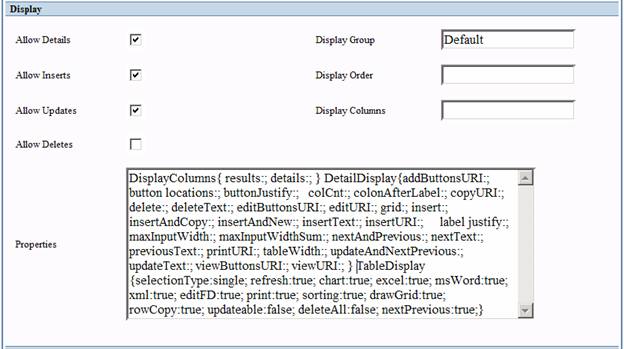
Figure 4-2 A continuation of the Create Operation screen. The Display properties control the appearance of the operation.
Display
Allow Details – Determines whether or not the Details
button  is shown in the
results table. This button allows the user to view the contents of one row in
detail. By default, the Details button is shown.
is shown in the
results table. This button allows the user to view the contents of one row in
detail. By default, the Details button is shown.
Allow Inserts – Determines whether or not the Insert button is shown in the results table. This button allows users to insert new rows into the table. By default, the Insert button is shown.
Allow Updates – Determines whether or not the Update
button  is shown in the
results table. This button allows users to update the contents of a row. By
default, the Update button is shown.
is shown in the
results table. This button allows users to update the contents of a row. By
default, the Update button is shown.
Allow Deletes – Determines whether or not the Delete
button  is shown in the
results table. This button allows users to delete a row from the database. By
default, the Delete button is not shown.
is shown in the
results table. This button allows users to delete a row from the database. By
default, the Delete button is not shown.
Display Group – Determines how WOW separates different operations. All operations with the same Display Group will be grouped together (in the table of contents or drop down navigation area) when the application is run. Specifying a Display Group allows related operations to be displayed next to each other. Any name that would help with grouping the operations will work in this field. See the Controlling the Display Order of Operations section for more information.
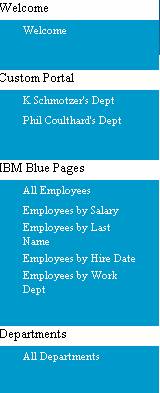
Figure 4-3 An example of Operations grouped into 4 different Display Groups.
Display Order – The order in which the operations should be displayed. Operations with lower display orders are displayed before operations with larger display orders. Display Order also determines the order of the Display Groups. Within a given Display Group, the lowest number in that set is shown first. The lowest number from each Display Group is the used to determine the order of the Display Groups.
Display Columns – Shows which columns should be displayed. Typically, an SQL Operation will return multiple columns from a database table (or tables), and will display all of these columns to the user. If you only want to display some of the returned columns, list those columns in this field (separated by commas) and only those columns will be shown.

Figure 4-4 A WOW Application using the Display Columns setting to specify the columns to be shown.
Properties – Controls specialty features of the Operation such as page breaks, columns displayed, button text, business graphs, etc. For more information, see the Setting Properties for Various Operations section and the Graphing chapter.
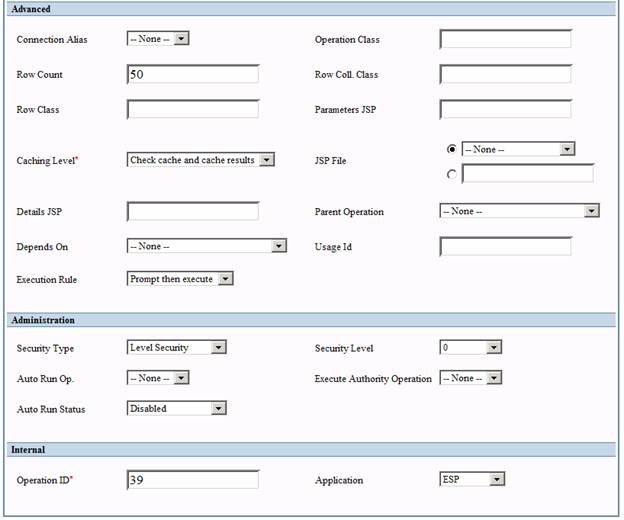
Figure 4-5 A continuation of the Creating Operations screen. Most of these settings are advanced and can be kept at their default values.
Advanced
Connection Alias – The database connection that was set up for the operation. By default, operations use the connection alias specified in their application. If an operation needs to use a different connection, select it in this field.
Operation Class – A custom java class allowing you to override the execute method to change the default operation behavior. For example, if a table is displayed by the operation and there are no rows to display, you could instead display the add screen.
Row Count – Specifies how many rows are displayed in the results table. If the number of results is greater than this value, links are generated on the results table allowing the user to page through it. The default is set at 50 rows. This field should be adjusted based on your system performance and connection speed.
Row Coll. Class – Specifies which RowCollection subclass this particular operation will use (optional field). For more details, see the WOW Programmers Guide. To use a row collection named MyRowColl in the com.mypkg package, specify the following:
com.mypkg. MyRowColl
Row Class - Specifies which Row subclass this particular operation will use (optional field). For more details, see the WOW Programmers Guide. To use a row subclass named MyRow in the com.mypkg package, specify the following:
com.mypkg. MyRow
Parameters JSP – Advanced use only. ‘Parameters’ refers to the search prompts given when using dynamic prompting in an SQL statement. Use this field to specify a custom parameters JSP to replace the default for that particular operation.
To use a jsp named myJsp in the “…\webapps\WOW64\user\planetj\jsp” folder, specify the following:
/user/planetj/jsp/myJsp.jsp
Caching Level (Required Field) – Sets the caching level of the operation. Caching deals with how WOW stores the information so it can be used later. It’s similar to any other caching that you would use with a web browser, etc.
- Cache for 1 Day- Checks and stores cache for 1 day
- Cache for 1Hour- Checks and stores cache for 1 hour
- Cache for 1 Week- Checks and stores cache for 1 week
- Cache for 15 Minutes- Same as check cache and store results, except the results are only stored for 15 minutes – after that they are removed from the cache
- Cache for 30 Minutes - Same as check cache and store results, except the results are only stored for 30 minutes – after that they are removed from the cache
- Check results after a DB read – After results are read from the database store them in the cache.
- Check cache and cache results – Check the cache before reading the database; if the database is read, then store the results in the cache afterwards.
- Check cache on DB read – Check the cache before reading the database.
- No caching – Do not use caching for this operation
JSP File – The JSP file to use for displaying the results of this SQL Operation. For more details, see the WOW Programmers Guide. This field currently gives five choices:
1. Existing List or Insert – If any records are returned, then list them. If not, go to insert view.
2. Header/Detail Reports – Return results in a report format with header, details, and footer. (See section on Reports for an example).
3. Single Row Edit – Returns a single record in the details view with editable fields
4. Single Row View – Returns a single record in the details view
To use a jsp named myJsp in the “…\webapps\WOW64\user\planetj\jsp” folder, specify the following:
/user/planetj/jsp/myJsp.jsp
Details JSP – Determines which JSP file to use when displaying the details of a single result of this Operation. To use a jsp named myJsp in the “…\webapps\WOW64\user\planetj\jsp” folder, specify the following:
/user/planetj/jsp/myJsp.jsp
Parent Operation – Used to identify the tab parent operation when defining tab operations. See the Creating Tab Operations section for more details.
Depends On – Advanced use only. ###
Usage ID – Can be assigned to identify a particular usage. This can be used to dynamically copy data with the same usageId. UI code can be written to look for fields with a particular usageId such as an electronic store where JSPs might anticipate a RowCollection coming in with usage fields for ItemId, ItemImage, Item Price, etc.
Execution Rule – Normally, when a user chooses to run an operation containing user parameters, the operation is not run until after the user fills in values. If you want to immediately run the operation (using the parameter default values) and then allow the user to specify different parameter values you can set the execution rule to "Execute then Prompt". For more information on parameters (including setting default values) see the Parameter section in the WOW Features chapter.
Next Operation - Allows the selection of another operation to execute when the current operation completes. The current operation completes when a row involved with the association is inserted, updated, or deleted. At that time, the next operation is executed.
Administration
Security Type – The type of security measures to use. Security Protocols will be discussed in detail in the Security chapter.
Security Level (Required Field) – Security Level is used in conjunction with the Security Type feature and will be explained in more detail in the Security chapter.
Auto Run Op. [c1] – Allows you to specify an operation that will automatically run on a set schedule. The pulldown for this field displays any available Auto Run operations created within the application. For more information, see the !h!Creating and Distributing Automatic Reports!h! and !h!Logging Email!h! sections.
Execute Authority Operation – Used to limit which users can view and run the operation. All Authorization Operations defined for the current application should appear in the drop down selection. If no operation is selected, all users will be authorized to execute this operation. See the Securing Fields and Operations with User Authorization Operations section for more details.
Auto[c2] Run Status – This field only applies to Auto Run operations. “Disabled” means do not run this operation, even when Auto Run is enabled for the application. “Enabled” means always run this operation when Auto Run is enabled for the application. “Production Only” means run this operation in the production environment only. “Development Only” means run this operation in the development environment only. For more information see the Creating !h!and Distributing Automatic Reports!h! and !h! Logging Email!h! sections.
Internal
Operation ID (Read-Only) – The ID used for categorizing and tracking operations. WOW assigns this value internally and cannot be changed.
Application – The application of which the operation is a part or member.
4.2 SQL Operations
SQL Operations are one of the more important Operation types that can be created with WOW. SQL stands for Structured Query Language. SQL is used to manipulate the data in a database. Although SQL is not a difficult programming language to understand, it is very extensive. The only SQL covered in this guide will be examples on how SQL works with WOW. If you are unfamiliar with SQL, you will still be able to follow the examples in this manual; however, it is highly recommended that you review the following SQL manuals and tutorials before using WOW.
· SQL School (http://www.w3schools.com/sql/default.asp) – A well put together site with extensive resources on many subjects. Contains online source code and examples.
· SQL Course (http://www.sqlcourse.com) – Another site that has easy to follow instructions and comes with an online SQL interpreter.
· SQL Tutorial (http://www.thinkbrown.com/programming/sql/_tutorial.pdf) – This is a 31 page SQL tutorial in the Adobe Acrobat format. An Adobe Acrobat viewer is required for this PDF file.
SQL Operations are covered in detail in Chapters 5, 6, 7, 8, and 12
4.3 HTML Code Operations
Like the SQL Operations described above, HTML operations use HTML to create operations that display HTML code. The HTML Operations can create a new level of customization by using HTML to enhance WOW Applications. Below is an example of an HTML Operation being used to create a welcome screen for a WOW application.
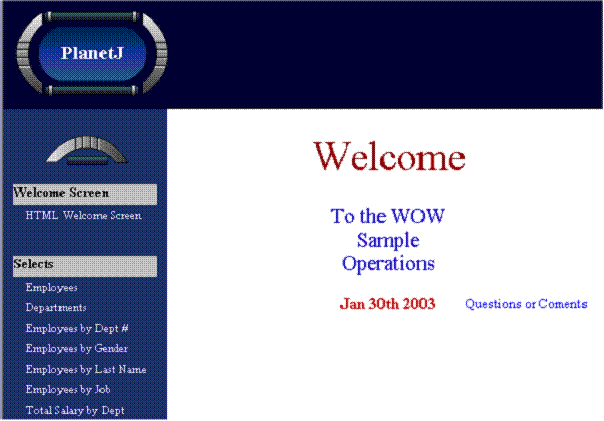
Figure 4-6 The Welcome screen is HTML code that was entered in a WOW Operation.
4.4 Other Operation Types
Operation Types
Associated Java Operation – Specifies a Java class where actual code can be executed. See the section on Associations for more information.
Associated Join – An operation that joins data from two separate systems. See the Join Associations section for more details.
Association 1-1 – An operation associated with a field. This operation will display a single row. Refer to the Associations section
Association 1-Many – An operation associated with a field. This operation will display a results table (one or more rows). Refer to the Associations section for more details.
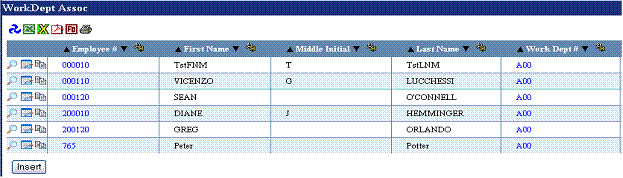
Figure 4-7 An example of a 1-Many Association indicated because of the multiple data entries.
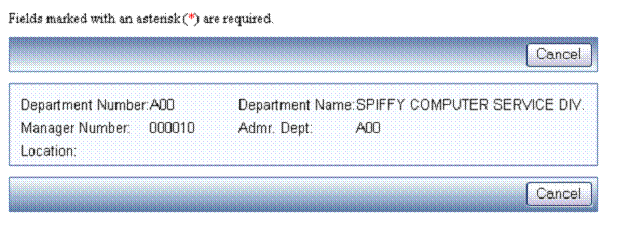
Figure 4-8 Above is showing an example of a 1-1 Association. Notice there is only one data entry being displayed as opposed to the multiple entries display with the 1-Many Associations.
Authentication – Authentication allows for added security when using a WOW Application. Each user will have to enter a username and password before they can view or edit the application in question. Authentication, along with all other security protocols available with WOW, is described in the chapter on security.
Auto Populate – An SQL Operation associated with a field that will retrieve information and populate other fields in the given Row based on the value of that field. See the section on Auto Population of Fields for more information.
Auto-run - Batch Process – An operation that is scheduled to run automatically when an application is started. For more information see the Logging Email section.
Auto-run - Email – An SQL operation that returns a list of rows which contain email fields (usage ID -40). These email fields can be used in conjunction with the Auto Run capabilities of WOW – see the section on !h!E-mail Operations!h! for more information.
Blob Download – An operation associated with a field (similar to association 1-1) where Blob data (jpg, image, etc.) is downloaded when the field is clicked on.
Execution Group – Operation that actually runs one or more other operations. After defining the Execution Group operation, define other (normal) operations and set their “Parent Operation” to the Execution Group operation. The other operations will not appear in the TOC, but instead will be run when the Execution Group operation is run. For example, if the other operations were called OP1 and OP2, when the Execution Group operation is run, the results would contain results from OP1, followed by results from OP2.
File Upload - Operation associated with a field (similar to association 1-1) where a file is uploaded when a field is clicked.
HTML Code – Inserts HTML directly into your applications. This can be used to customize your program with a startup screen, logo, or any other custom HTML code you would like to add to your application. Refer to the HTML Code Operations section.
HTML Code Association – As the name suggests, this is the association version of the HTML Code operation. It provides the same functionality as the HTML Code operation but is set on a field as an association. However, since it is an association, row parameters (??field) can be placed anywhere in the HTML code. This is an incredibly powerful feature of WOW. See .
HTML Reference – Specifies a Web Site address that WOW will open in a new window.
HTML Reference Association - Similar to all associations in that upon execution, values from a source row may be used to retrieve dynamic content for an http URL. For example, if a selected record contained address information, you could create an HTML Reference Association that linked to Google Maps or some other internet mapping service. Dynamic content in the URL can be replaced in a similar fashion to replacing values for SQL fields.
JSP Reference – Inserts a JSP file directly into your applications. Use the ‘JSP File’ field, to specify the path to the JSP file. In the example depicted in Figure 4-9, the file welcome.jsp will be displayed in the application.
 .
.

Figure 4-9 Above is an example of a JSP Reference operation..
Possible Values – Uses data from a database to create the possible values of the field. Possible Values are described in greater deal in the Possible Values section of the WOW Features chapter.
Possible Values Search - Possible Values operation opens in a popup window so that the Possible Value for a particular field can be picked from a result set dynamically. Allows the user to specify search parameters and see other values in the row while selecting field value. Possible Values Search is described in greater deal in the !h!Possible Values Search!h! section of the WOW Features chapter.
Possible Values Selector – Behaves in a similar fashion to the Possible Values Operation; however, this operation causes a round-trip to the server when the value of the field changes. Possible Values Selector is described in greater deal in the Possible Values Selector section of the WOW Features chapter.
Referer Authorization – Used to allow only users coming from a certain web page into your application. Refer to the HTTP Referer section for more details.
Tabbed – A secondary operation displayed in a tabbed layout. Refer to the Tabs chapter for more details.
User Authentication List – An application can be secured by creating a User Authentication List Operation which is defined by a comma separated list of user names and passwords. When the user logs on to an application with list based security they are prompted for their user name and password. This is a useful option when the WOW developer wants to quickly implement application level security for a small group of users without having set up table or user profile based security. Refer to the User Authentication List section for more information.
User Authorization List – An operation that holds a static list of user names defined when this operation is created and is used to restrict access to certain fields or operations. This is authorization operation is useful when a small number of users will have restricted access to certain fields and/or operations.
Refer to the Securing Fields and Operations with User Authorization Operations section for more information.
User Authorization Operation – An operation that dynamically returns a single column of user names. This type of operation is a more dynamic solution than the user authorization list.
An SQL statement is defined that returns a result containing a single column of user names.
Refer to the Securing Fields and Operations with User Authorization Operations section for more information.
View Selected Association - ###
4.5 Controlling the Display Order of Operations
Display Groups determine how WOW separates different operations. All operations with the same Display Group will be grouped together when the application is run. Any name that would help with grouping the operations will work in this field. If the Display Group is not specified, that operation will appear under the ‘Default’ group.
The parameter that specifies which Display Group that an operation appears in is the Display Group parameter. There are two elements involved in the ordering of operations. One is the order that the Display Groups appear. The other is the order in which the operations appear within the Display Group. Both of these order elements are determined by the single property Display Order. Within a Display Group, the operation with the lowest value appears first in the list. The next greater value in that Display Group appears second, etc. The order of the Display Groups is determined by the operation in each group with the lowest Display Order. The minimum value in each Display Group is then used to place the Display Group in the proper order.
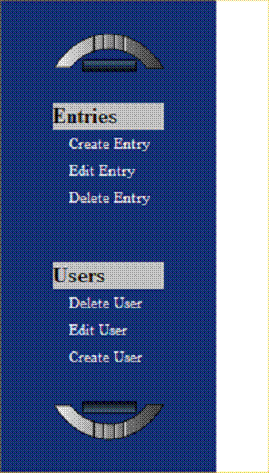
For example, if we have the following operations and their associated properties, the operations will be displayed as shown:
|
Operation |
Display Group |
Display Order |
|
Create User |
Users |
0 |
|
Edit User |
Users |
10 |
|
Delete User |
Users |
20 |
|
Create Entry |
Entries |
100 |
|
Edit Entry |
Entries |
110 |
|
Delete Entry |
Entries |
120 |
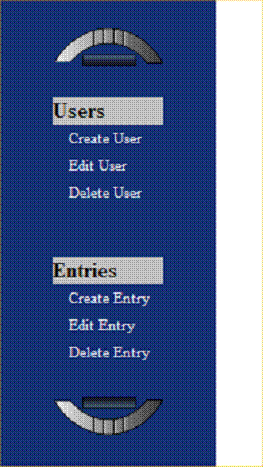
Swapping the Display Order values of the Create User and Delete User Operations, will in turn swap the order of the Operations within the Users Display Group.
|
Operation |
Display Group |
Display Order |
|
Create User |
Users |
20 |
|
Edit User |
Users |
10 |
|
Delete User |
Users |
0 |
|
Create Entry |
Entries |
100 |
|
Edit Entry |
Entries |
110 |
|
Delete Entry |
Entries |
120 |
Changing the Display Order of the Create Entry Operation to a value of -100 will cause the minimum value of the Display Order for the Entries Display Group to be less than the Users Display Group, which will switch the order of the entire set. Despite the fact that the Edit Entry Operation and the Delete Entry Operation both have a Display Order value that is greater than all of the Operations in the Users Display Group, the Entries Display Group is displayed first.
|
Operation |
Display Group |
Display Order |
|
Create User |
Users |
20 |
|
Edit User |
Users |
10 |
|
Delete User |
Users |
0 |
|
Create Entry |
Entries |
-100 |
|
Edit Entry |
Entries |
110 |
|
Delete Entry |
Entries |
120 |
4.6 Using A Please Wait Page
The amount of time it takes for a query to run depends on several factors, including the complexity of the operation, the amount of data being searched over, and the speed of the database connection. WOW allows you to display a “please wait” page for long running queries. This please wait page appears immediately when a long-running query begins, and is replaced with the query results upon the completion of the operation. Showing a please wait page gives the user a more responsive experience than an application which appears to do nothing for several seconds after a search is initiated.
To indicate that a query should display a please wait page to the user while it runs, you must add the PleaseWait property group to the operation’s Properties:
PleaseWait {}
You do not need to include any properties in the property group; the group itself is sufficient. The operation will now display the default please wait page to the user when it runs.
Creating A Custom Please Wait Page
If you do not want to use the WOW default please wait page you can create your own custom page to use instead. You can use any valid JSP as your please wait page. Any HTML page (including pages created using tools like Dreamweaver or FrontPage) will work as long as you change the file extension from .html to .jsp. Or you can create a custom JSP using scriptlets and tag libraries if you wish. Keep in mind that WOW will not add any sort of header or menus to your please wait page.
Inside of the PleaseWait property group, you use the jsp property to indicate which JSP should be used as the please wait page:
PleaseWait { jsp: /mydir/mysubdir/mypleasewait.jsp;}
The operation will now use your please wait JSP instead of the default WOW page. Note, the jsp file path used above is relative to the WOW context folder in Tomcat. For instance, the file path above would be actually going to the following local address:
…\Tomcat 5.5\webapps\wow64\mydir\mysubdir\mypleasewait.jsp
If multiple operations are using the same please wait JSP, you can specify the PleaseWait property group containing your JSP in the application properties. Then all operations with please wait pages will use the JSP in the application properties by default. (You must still specify the PleaseWait property group in the operation to indicate that the operation should show a please wait page, but you do not have to include your custom JSP in the operation properties.)