|
Chapter 5 |
5. Selecting Records
5.1 Basic SQL Queries Using the SELECT Statement
The SELECT statement is a vital SQL command which is used frequently within WOW. This section contains numerous examples in which some basic SQL knowledge will be helpful in understanding. In all of the examples we will only need to complete the fields located in the BASIC section of an operation. For each example there will be a screen shot followed by an explanation of its contents.
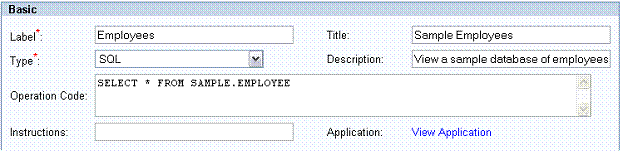
Figure 5-1 The operation creation screen. The use of intelligent SQL queries in the Operation Code field allows users to have complete control of their information.
(To get to this screen, click the Insert Operation button while viewing a list of operations.) All of the fields have been described above in section 4.1. In this section, the focus will be on the SQL query itself. SQL is not case sensitive, but entering the SQL in all capital letters will simplify the coding.
Take for example this simple SQL query:
SELECT * FROM SAMPLE.EMPLOYEES
This query will select all of the records in the EMPLOYEE table, which is found in the SAMPLE schema. The ‘*’ symbol is used to select all of the columns from the table. In the next example, individual columns will be selected. Most SQL queries will have the keyword FROM somewhere in the query. This tells the program which table or tables to select the information from. After you have entered all of the relevant data click the Insert Operation button. This will insert the SQL Operation into the application.
Note: The SELECT statement syntax is slightly different for Microsoft’s SQL Server and Access:
Microsoft SQL Server 2000 & Up:
With SQL Server, the database schema notation is slightly different than say the AS400’s. In the examples below, two different and valid notations are given. In the first, note the use two periods, rather than one, between the database and table. In the second, note the inclusion of an owner between the database and table.
SELECT * FROM DATABASE..TABLE (recommended)
ex. SELECT * FROM NORTHWIND..SUPPLIERS
or
SELECT * FROM DATABASE.OWNER.TABLE
ex. SELECT * FROM NORTHWIND.DBO.SUPPLIERS
Microsoft Access:
SELECT * FROM TABLE
ex. SELECT * FROM SUPPLIERS
5.2 Other Queries Using the SELECT Statement
SQL allows you to select specific columns from a table:
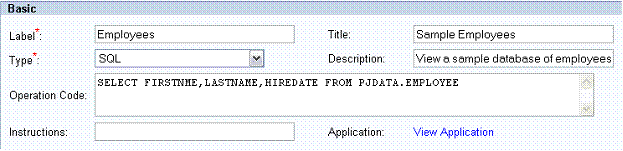
Figure 5-2 An SQL Operation that specifies certain columns.
In this example, the SQL statement is:
SELECT FIRSTNAME, LASTNAME, HIREDATE FROM PJDATA.EMPLOYEE
This SQL query is selecting individual columns in the EMPLOYEE table. LASTNAME, FIRSTNAME and HIREDATE are the names of specific columns. Selecting specific columns will prevent you from displaying data that isn’t relevant to the search. Each column name is separated by a comma. Again notice the FROM keyword pointing to the EMPLOYEE table. After you have entered all of the relevant data, click the Insert Operation button. This will insert the SQL Operation into the application.
The next example shows how to use the WHERE clause in an SQL statement to restrict the rows returned by the query. Only those rows meeting the criteria in the WHERE clause will be returned by the query.
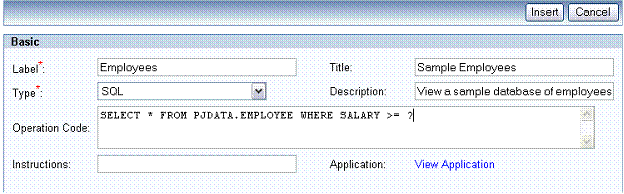
Figure 5-3 An SQL Operation that demonstrates a WHERE clause.
In this example, the SQL statement is:
SELECT * FROM PJDATA.EMPLOYEE WHERE SALARY >= ?
This SQL query is different from the previous two because of the WHERE keyword that is added. The WHERE clause is used to specify a search condition that will identify the row or rows you want to manipulate. Notice that the WHERE clause contains a question mark. If we knew what value we wanted entered ahead of time, we could hardcode the value into the SQL Operation. A question mark allows the user to provide any value at runtime.
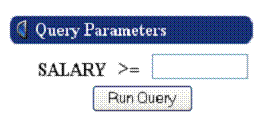
Figure 5-4 The result of the SQL Operation in figure 5-3. By using a question mark ‘?’ in place of specific values in an SQL query, different values can be entered each time the SQL Operation is executed.
After you enter the value for SALARY, the query will display a table with all of the employees with salaries greater than or equal to the value specified. The WHERE clause is usually used with comparison operators. You can include multiple parameters in the WHERE clause to specify more complex queries. For additional information on using parameters in SQL statements, see the Parameters section of the WOW Features chapter.
5.3 Tips: Setting Key Position Field to Select Unique Records
In WOW many of the SQL statements are generated for the user. For example when selecting records from a field and then clicking insert, the SQL is dynamically generated. If there are many records, you may come across a problem where WOW will Select, Delete, Insert, Update more than the one record desired because it does not have the appropriate key position(s) set.
The key position is the same as a primary key in a database system and similar to a unique key. It gives the database a reference to differentiate rows (records). Normally, if a primary key is set in database system WOW will pick it up. If not, or if the key position(s) was not set in the database, then it is necessary to set the Key Position in the Field Descriptor to differentiate the rows.
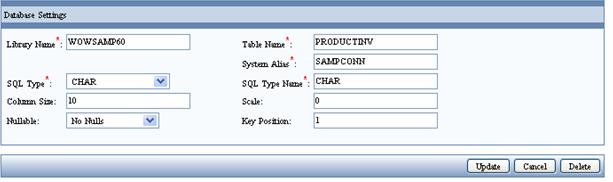
Figure 5-5 Field Descriptor of field(s) used to differentiate records with Key Position.
If there is no specific field such as id or employee # use multiple fields that guarantee unique records. In this case set key position for different fields to 1,2,3…etc.
NOTE: These key fields do not need to be shown. They just need to be set. You can set them to not display by changing the display property group of the operation explained in Chapter 4 above.
5.4 SQL Tips
5.4.1 Case Sensitivity
To make SQL searches NOT case sensitive use the UPPER keyword. For example:
SELECT * FROM yourtable WHERE UPPER(lname) LIKE UPPER(TRIM(CAST(? as CHAR(20))))
The field lname was a CHAR(20) and we wanted to search for it using any number of known letters in the word. We need to use the trim command, because, for example, if you search for all last names starting with an ‘S’, it will take in the S and then add zeros to fill up the CHAR(20) space unless it matches it exactly. So the trim takes out those extras spaces or fillers.
5.4.2 Optional Values
To allow optional entry of certain values in a SQL search statement, use the SQL VALUE clause. For example:
SELECT * FROM yourtable WHERE first_name = VALUE(cast(? as CHAR(20)), first_name) AND last_name = VALUE(CAST(? as CHAR(20)), last_name)
In this case you are searching your table by last name and first name using the VALUE function which basically is a function that returns the first value that is not null. For example we could input a first and last name, one separate from the other or none at all and it will search according to that. If you enter none of these then it will show the entire file, if you only enter first name then it will search for all of the records that have that first name and will not use the last name field as a parameter for searching. This allows you to have one search operation that can have many different fields to search by without depending on each other or on having a value.
Note: You may also use the LIKE Function with the VALUE Function making the search even more powerful, but with LIKE you again may need to use the TRIM command.