|
Chapter 12 |
12. Charts, Graphs, and Images
12.1 WOW CHART API
The WOW Chart API is a plug-in to WOW that allows results returned from executing queries to be charted. An SQL Operation can have any number of different charts. The following is a list of charts that are possible to create with the WOW Chart API.
Chart Types
· Horizontal Bar
· Horizontal Bar (3D)
· Line
· Vertical Bar
· Vertical Bar (3D)
12.2 Creating Charts
Each chart must have its own chart property group containing the information needed to create the chart (the type of chart to create, how the data should be plotted, possibly a title, columns to use for categories, and columns to use for series, etc). In order for charts to work properly the operation they are set on should return results that have at least one Row that contains one column with a numeric value. As mentioned previously, an Operation’s results can have any number of different charts. Each chart needs its own property group set on the Operation.
Chart property groups are defined in the same way as all other property groups as described in an Operation Properties section of the WOW Features chapter. Chart properties are in the format “Chart { }” with individual chart properties in between the open and close brackets. Note: in addition, results will not show charting links if the chart property in the TableDisplay property group isn’t set to true. Below is a figure with a sample chart property group and its properties. The next section also describes each chart property and what it is used for.
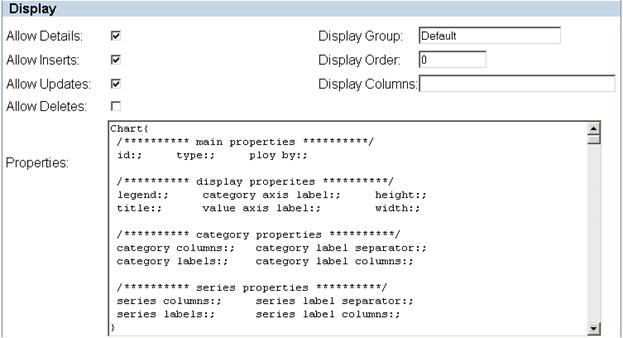
Figure 12-1 Example chart property group with all its properties.
12.3 Chart Properties
Listed below are all the different properties for charting. Each item below contains the type of property, its property name (i.e. how it’s specified in the chart property group), and a description of what the property is used for.
id – is a String property that is used to uniquely identify the given chart from other charts in the same operation. This property is not required, but if custom programming is being done it is helpful in obtaining the right chart property group.
type – is a String property that is used to specify the type of chart to generate. This can either be the chart’s unique number or its abbreviation key (see table below). Note: this property is required.
|
Type |
Number |
Abbreviation |
|
Horizontal Bar |
1 |
hear |
|
Horizontal Bar (3D) |
2 |
hbar3d |
|
Vertical Bar |
3 |
vbar |
|
Vertical Bar (3D) |
4 |
vbar3d |
|
Line |
5 |
line |
plot by – is a String property that is used to determine how to extract data from the results when generating the chart. You can either plot by row or by column (these are the two possible values for this property). If an unknown property value is given, it defaults to plotting by row.
Take for instance the following data:
|
Year |
1st Qtr |
2nd Qtr. |
3rd Qtr. |
4th Qtr. |
|
2001 |
10,000 |
9,800 |
9,000 |
9,500 |
|
2002 |
9,700 |
9,900 |
10,600 |
11,100 |
If you want to create line chart comparing the two years plotting values at each quarter, you would want to plot values by row. In this case, you category columns would be the quarter columns.
However, if your result data was like this:
|
Qtr |
2001 |
2002 |
|
1st |
10,000 |
9,700 |
|
2nd |
9,800 |
9,900 |
|
3rd |
9,000 |
10,600 |
|
4th |
9,500 |
11,100 |
In this case, you would want to plot by column. You would specify the series columns as 2001 and 2002. Each row would be considered a category.
legend – is a boolean property that instructs whether or not to include the chart’s legend when generated.
title – is a String property whose value is included as the chart’s title when the chart is generated.
category axis label – is a String property whose value is included as the label on the axis where the chart’s categories reside. (e.g. on a horizontal chart the y-axis is the category axis and on a vertical chart the x-axis is the category axis).
value axis label – is a String property whose value is included as the label on the chart’s value axis. (e.g. on a horizontal chart the x-axis is the value axis and on a vertical chart the y-axis is the category axis).
height – is an int property that is used to specify the height of the chart.
width – is an int property that is used to specify the width of the chart.
category columns – is a List property where Field names from the given results are listed to specify which columns contain the category values in each series. This is only needed when plotting by row.
category labels – is a List property where labels for each category can be specified. When the chart generates, these are the labels that will be applied to each category.
category label separator – is a String property that is used to separate the label when category labels are to be generated from more than one column.
category label columns – is a List property that allows for category labels to be generated from the values in more than one column.
series columns – is a List property where Field names from the given results are listed to specify which columns are to be used for series. This is only needed when plotting by column.
series labels – is a List property where labels for each series can be specified. When the chart generates, these are the labels that will be applied to each series (if the legend is included).
series label separator – is a String property that is used to separate the label when series labels are to be generated from more that one column.
series label columns – is a List property that allows for series labels to be generated from the values in more than one column.
12.4 Chart Examples
This section shows examples of how to create each type of chart. All the examples in this section are also part of the “Graphing” application under the samples application in WOW.
Horizontal Bar
Create an SQL Operation and set its basic properties as shown in the figure below.
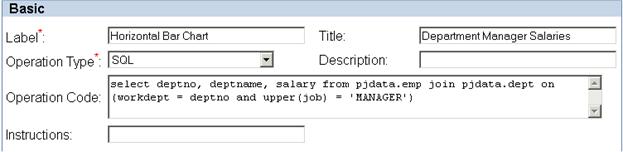
Figure 12-2 The screenshot above shows the settings for basic operation properties for a horizontal bar chart example.
This query produces the following result.
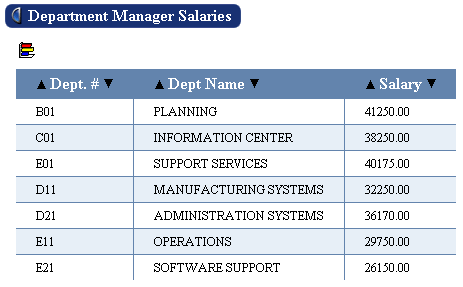
Figure 12-3 Results produced from horizontal bar chart example query. Note: this screen shot shows a chart icon, because it was taken after the complete operation was created. Normally this wouldn’t show up until the chart property group was added to the operation.
Next, we need to setup the chart property group.
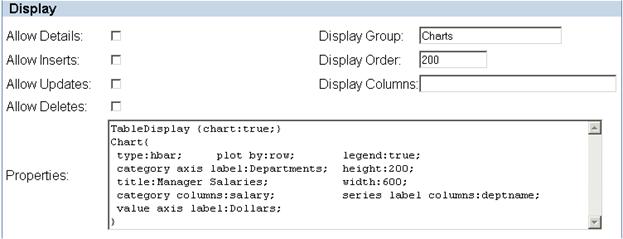
Figure 12-4 The above screenshot show the chart properties for the horizontal bar examples.
Now when the user clicks the chart icon, the following chart generates.
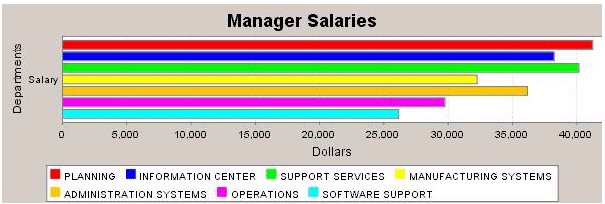
Figure 12-5 The above screenshot shows a chart generated from the horizontal bar chart example.
Horizontal Bar (3D)
For example purpose, this section contains just the images captured during the creation of the 3d horizontal bar chart example operation. It is similar to the horizontal bar chart example above.

Figure 12-6 The above screenshot shows the settings of basic operation properties for a 3d horizontal bar chart example.
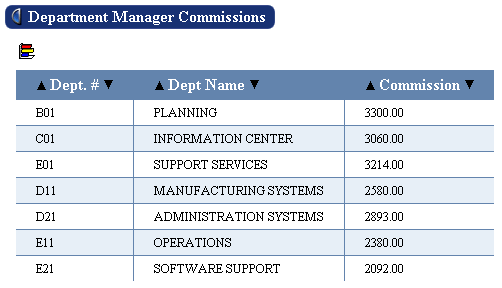
Figure 12-7 The above screenshot shows the results produced from 3d horizontal bar chart example query. Note: this screen shot shows a chart icon, because it was taken after the complete operation was created. Normally this wouldn’t show up until the chart property group was added to the operation.
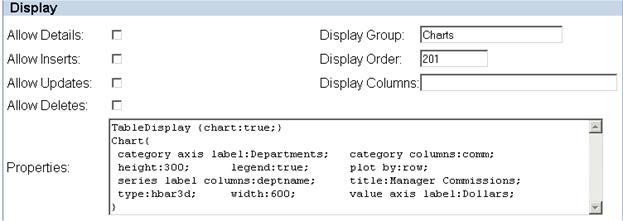
Figure 12-8 The above screenshot shows the chart properties for the 3d horizontal bar chart example.
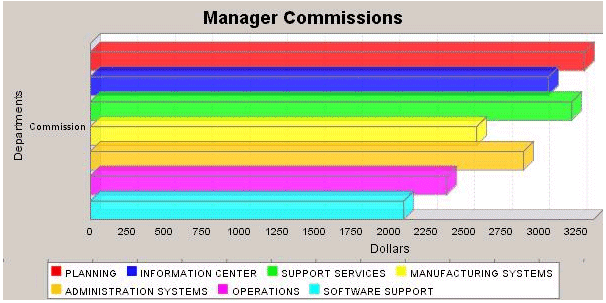
Figure 12-9 The above screenshot shows a chart generated from the 3d horizontal bar chart example.
Vertical Bar
For example purposes, this section contains the images captured during the creation of the vertical bar chart example operation. It is similar to the horizontal bar chart example above.

Figure 12-10 The above screenshot shows the settings for basic operation properties for a vertical bar chart example.
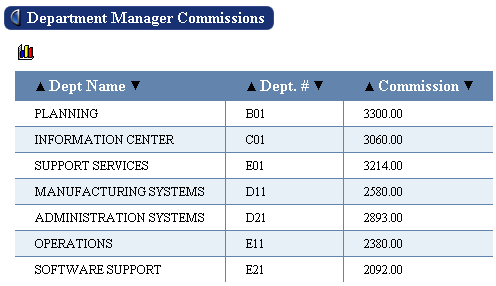
Figure 12-11 The above screenshot shows the results produced from vertical bar chart example query. Note: this screen shot shows a chart icon, because it was taken after the complete operation was created. Normally this wouldn’t show up until the chart property group was added to the operation.
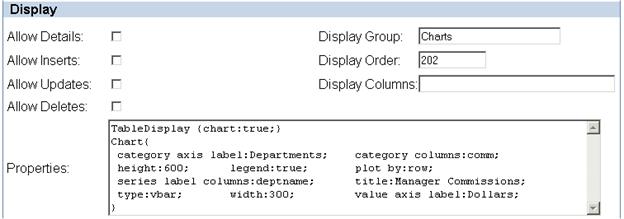
Figure 12-12 The above screenshot shows the chart properties for the vertical bar chart example.
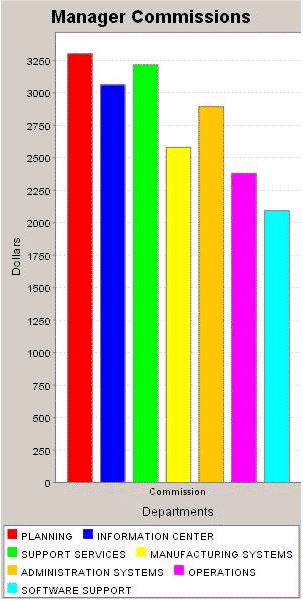
Figure 12-13 The above screenshot shows the chart generated from the vertical bar chart example.
Vertical Bar (3D)
For example purposes, this section contains just the images captured during the creation of the 3d vertical bar chart example operation. It is similar to the horizontal bar chart example above.

Figure 12-14 The above screenshot shows the setting for the basic operation properties for a 3d vertical chart example.
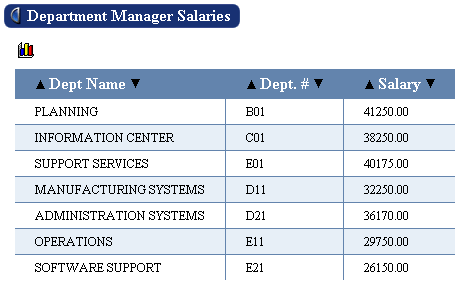
Figure 12-15 The above screenshot shows the results produced from 3d vertical bar chart example query. Note: this screen shot shows a chart icon, because it was taken after the complete operation was created. Normally this wouldn’t show up until the chart property group was added to the operation.
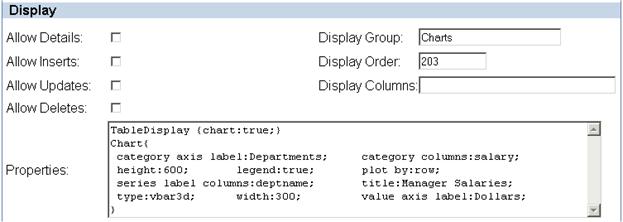
Figure 12-16 The above screenshot shows the chart properties for the 3d vertical bar chart example.
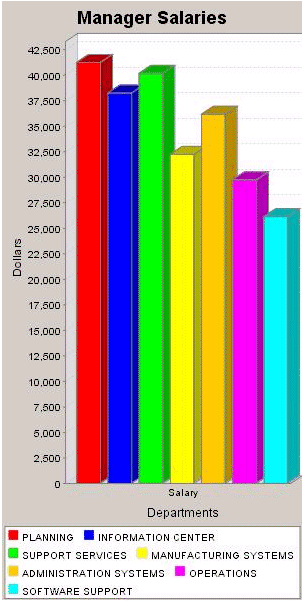
Figure 12-17 The above screenshot shows a chart generated from the 3d vertical bar chart example.
Line
For example purposes, this section contains just the images captured during the creation of the line chart example operation. It is similar to the horizontal bar chart example above.
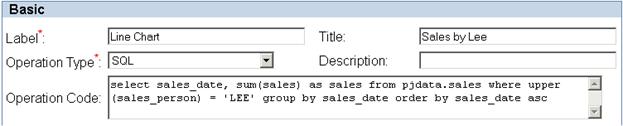
Figure 12-18 The above screenshot shows the setting for the basic operation properties for a line chart example.
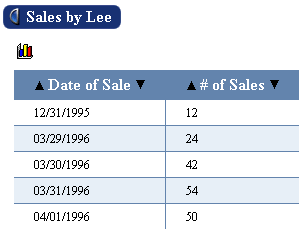
Figure 12-19 The above screenshot shows the results produced from line chart example query. Note: this screen shot shows a chart icon, because it was taken after the complete operation was created. Normally this wouldn’t show up until the chart property group was added to the operation.
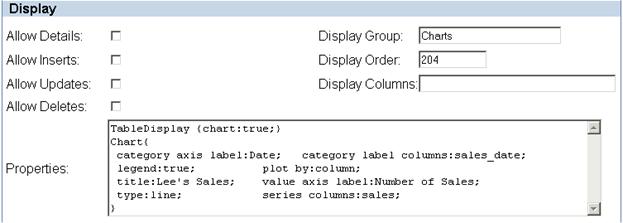
Figure 12-20 The above screenshot shows the chart properties for the line chart example.
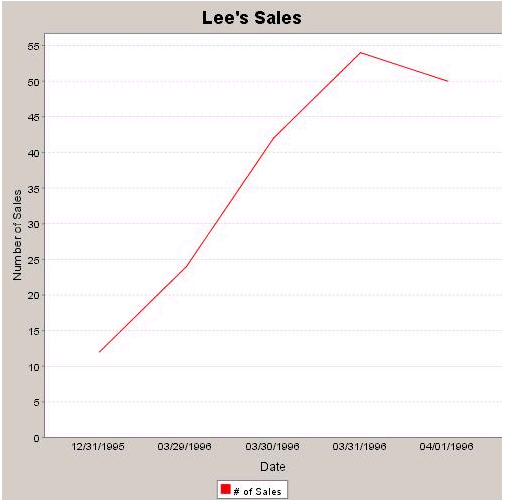
Figure 12-21 The above screenshot shows the chart generated from the line chart example
12.5 Referencing Images
There are dozens of ways to add images to your WOW applications. The majority of these methods involve just a basic understanding of referencing images with HTML and CSS. Since there are thousands of resources available online to learn these methods, this section will focus more on methods that are mostly unique to WOW.
12.5.1 Image URL Reference Field Class
The ‘Image URL Reference’ field class can be set on fields that contain a URL image reference to render the image. For example, let’s say you have a table containing employee records. Each record consists of a particular employee’s info (name, salary, job title, etc). One of the fields contains a URL reference to a picture of that employee stored within the web app directory or some other accessible web server. Rather than just displaying that image path in text (e.g. “images/JonSmith.jpg” or “http://www.website.com/images/image.jpg”), you can set WOW to retrieve and display the actual image instead. This is done simply by opening the image field’s Field Descriptor and setting its Field Class to ‘Image URL Reference’.
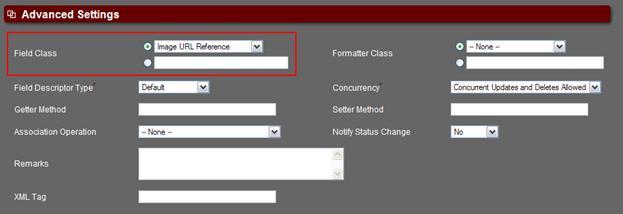
Figure 12-22 Setting the Field Class to ‘Image URL Reference’ in the Field Descriptor.
See the section below, Relative Image Paths in WOW, for important info on setting up your image URL paths.
12.5.2 Using SQL For Static Images
There are many occasions when one might want to return an image, say a button or icon, in a field with your SQL select statement. By doing so, you could easily create “button” functionality using a derived field with an association. Let’s look at a sample scenario:
SELECT ‘images/viewdetails.gif’ as viewDetails, firstnme, lastname FROM PJDATA.EMPLOYEE
This statement selects an image path URL as a derived field called viewDetails, as well as the first and last name from an employee file. This will return results like those shown in the figure below:
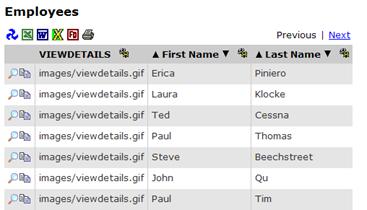
Figure 12-23 Results without an FD, image field class, and association set.
At this point, the full image path text is displayed. Now, we create a field descriptor for this derived field, set its field class to ‘Image URL Reference’ and assign a details association operation. The field class will cause WOW to actually render the image rather than showing its URL and the association will allow you to drill down into the “details” of the corresponding record.
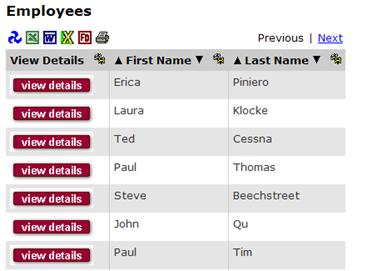
Figure 12-24 Results with an FD, image field class, and association set.
See the section below, Relative Image Paths in WOW, for important info on setting up your image URL paths.
12.5.3 Using SQL For Dynamic Images
In some scenarios, you may want to display different images within a field based on that field’s value. For example, let’s say you are creating a sales report that returns a red, yellow, or green light based on the total sales of each department. This can be accomplished fairly easily by using an SQL CASE statement. Let’s look at the SQL statement for the scenario above. In this case, using a derived field called ‘status’, it will return a red light if the total sales is 35 or lower, yellow light if it’s between 35 and 65, and green if its 65 or higher.
SELECT region, sum(sales) as Sales,
CASE
WHEN SUM(sales) <= 35 THEN 'images/red.gif'
WHEN SUM(sales) BETWEEN 35 AND 65 THEN 'images/yellow.gif'
WHEN SUM(sales) >= 65 THEN 'images/green.gif'
END AS status
FROM pjdata.sales GROUP BY region
At the moment, this statement will show the text for the image path in the status field rather than the image itself. To make if retrieve and display the actual image, set the Field Class in the status Field Descriptor to ‘Image URL Reference’. The results of your operation will now look similar to the following figure:
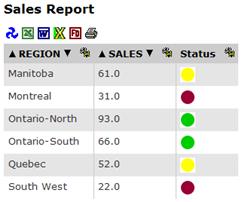
Figure 12-25 Results with status images dynamically generated with an SQL CASE statement.
See the section below, Relative Image Paths in WOW, for important info on setting up your image URL paths.
12.5.4 Relative Image Paths in WOW
If you’re not familiar with relative URL paths, then referencing images contained within your web app directory can often be quite frustrating. We recommend reading this section if you’re not familiar with relative paths within a web application.
A non-relative (absolute) URL is a full unabbreviated address that looks like the following:
http://www.yourserver.com/images/yourimage.gif
A relative URL is an abbreviated address that is “relative” to a base directory. It might look something like:
images/yourimage.gif
By default all relative paths that you specify within a WOW application are relative to the WOW context which is the application root. For example, to reference the following local image file
C:\Program Files\Apache\Tomcat\webapps\wow64\dataengine\images\yourimage.gif
you would use this relative URL:
dataengine/images/yourimage.gif
Notice that the WOW context, wow64, is being used as the base/root directory of the image path.