|
Chapter 13 |
13. Tabs
13.1 Tab Overview
One of the options provided by WOW is to display the results of an operation in a tabbed layout. This layout is typically used where you have one primary operation, and multiple secondary operations related to the primary operation. For example, your primary operation might be to look up a customer, and your secondary operations might allow you to view that customer's history, current charges, and account options. While you are running the secondary operations, you still want to be able to view the results of your primary operation (e.g. the current customer resulting from your search).
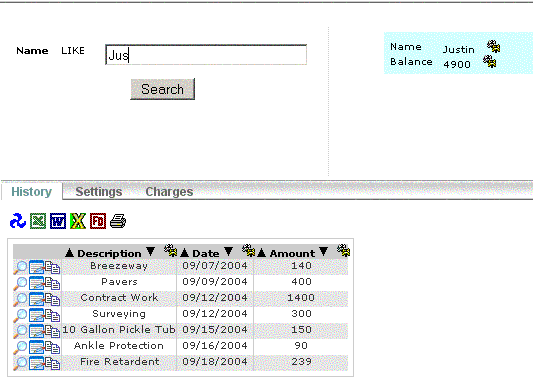
Figure 13-1 A typical tabbed screen in WOW
13.2 Creating Tab Operations
This section will describe how to configure your operations to use a tabbed interface, as shown above. The first step is to determine what your primary operation (also known as the "tab parent operation") will be. In our example, this is the query which looks up a customer based on a name search. The operation type of your tab parent operation should be set to "Tabbed Operation":
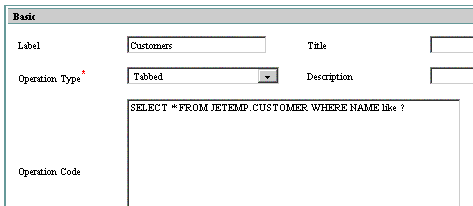
Figure 13-2 Definition of the tab parent operation
Once the tab parent has been defined, the next step is to create your secondary operations (also known as the "tab data operations"). Creating a tab data operation should be done exactly like creating an associated operation and associating it with the results of the tab parent operation. That process is fully described in the Association section, and is summarized below:
-Each tab data operation should be an association operation type (such as 1-to-Many Association or 1-to-1 Association)
-The tab data operations can use the double question mark notation to refer to fields in the result of the tab parent operation
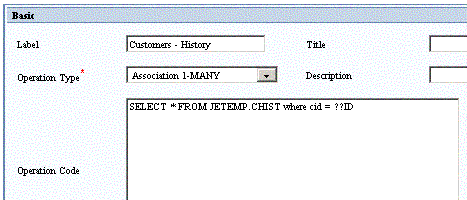
Figure 13-3 Definition of a tab data operation
- Each tab data operation should be listed as the associated operation on a field descriptor of a result field of the tab parent operation.
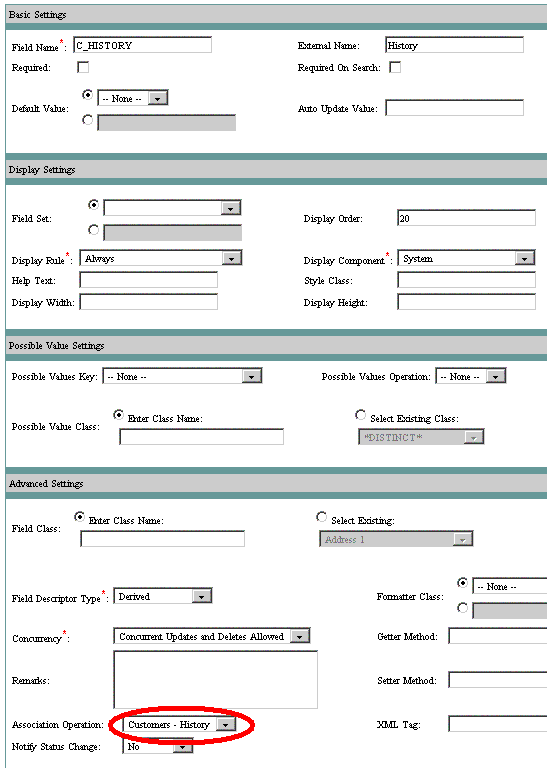
Figure 13-4 Specifying the tab data operation in the field descriptor
There must be one such field (with an associated tab data operation) for every tab. The external name of the field will be the name of the tab as it is displayed to the user. It does not matter whether the field is a derived field or a physical field; what's important is that the field be selected as part of the tab parent operation, and that the field is listed in the detail display columns. (If the detail display columns are left blank then all fields are displayed by default, so not specifying detail display columns will work as well.)
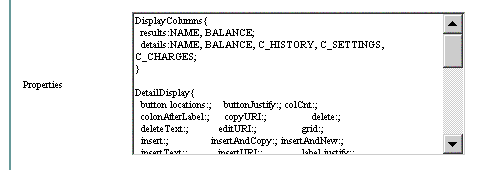
Figure 13-5 Fields containing tab data operations must be both selected in the SQL and displayed in the details
So in summary, the operation type of the tab parent operation must be "Tabbed Operation", and the tab data operations are each associated operations which are associated with a particular field of the tab parent.
13.3 Using Tabs
When using tabs in WOW, before the tab layout is displayed there must be a single tab parent row. What this means is that, if the tab parent operation is run and results in multiple rows, the tab layout is not displayed until the user has narrowed the results down to a single row. This can be done either by altering the search criteria so that a single row is returned, or by clicking on the detail view of one of the result rows.
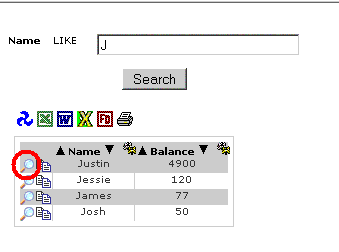
Figure 13-6 When multiple rows are in the results you must click on the detail button to view the tabs
13.4 Tab Configuration
The Tabs property group allows you to configure tabs in several ways:
Once a single tab parent row has been selected, WOW will display all the tabs associated with that tab parent, however it will not automatically select a tab for the user. If you want WOW to automatically select one of the tabs by default, you can specify this in the Tabs properties group:
Tabs {
defaultTab: C_HISTORY;
}
The above property group instructs WOW to initially display the C_HISTORY tab. In our example, this is the tab labeled "History". C_HISTORY is the internal name of the derived field associated with the operation for retrieving the customer's history. The defaultTab property is specified in the tabbed operation (not any of the tab data operations).
By default, any fields in the details of the tabbed operation which have associated operations are rendered as tabs. However, in some cases you may have fields with associated operations which are not tabs. You can use the tabFieldsExclude and tabFields properties to control which fields are displayed as tabs:
Tabs {
defaultTab: C_HISTORY;
tabFields: FIELD1, FIELD2;
}
In the above property group, fields FIELD1 and FIELD2 will be the only fields rendered as tabs, no matter how many other fields have association operations.
Tabs {
defaultTab: C_HISTORY;
tabFieldsExclude: FIELD_A, FIELD_B;
}
In the above property group, fields FIELD_A and FIELD_B will not be displayed as tabs, even if the have associated operations. The tabFieldsExclude and tabFields properties are always specified in the tabbed operation (not the tab data operations).
If an operation has a large number of tabs, WOW may need to use multiple lines on the screen to display all of the tabs:
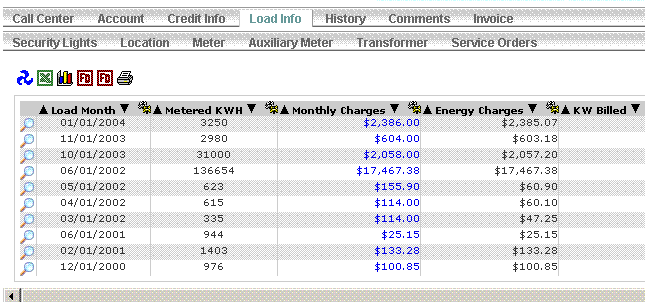
By default, WOW will display a maximum of 10 tabs on the same line. You can change the maximum number of tabs on a single line with the maxTabsPerLine property:
Tabs {
maxTabsPerLine: 7;
}
The maxTabsPerLine property is specified in the tabbed operation, not the tab data operations.
As discussed in the previous section, when you run a tabbed operation you will only see the tabbed layout when viewing a single row from the results. Normally, when your query returns a single row WOW will take you directly to the tabbed view for that row instead of displaying a list view containing a single row. However, this behavior can be overridden setting the automaticTabView property to false:
Tabs {
defaultTab: C_HISTORY;
maxTabsPerLine: 7;
automaticTabView: false;
}
In this case after running a tabbed operation the results will always be displayed in a list view, even if there is only a single row to display. You can still click on the View Details link (the magnifying glass) for any row to view that row in a tabbed view. The automaticTabView property is specified in the tabbed operation, not the tab data operations.
Sometimes, you may want the results of an operation to be displayed inside of a tab, but the details of that operation to be displayed outside of a tab. Using the allowInTab property you can specify exactly when an operation is allowed to be displayed in a tab:
Tabs {
allowInTab: results;
}
There are 4 settings for this property:
- always – Display both the results and the details in a tab
- details – Only the details (not the results) should be displayed in a tab
- never – Neither the details nor the results should be displayed in a tab
- results – Only the results (not the details) should be displayed in a tab
Unlike all other properties in the Tabs property group, the allowInTab property must be specified in the tab data operation, and not the tabbed operation.
When a tabbed operation is run and there are no results, WOW can either display an empty table of the results, or can leave the results section of the screen blank.
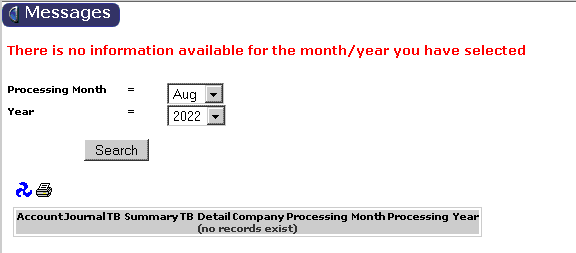
Figure 13-7 A tabbed search which displays the empty results
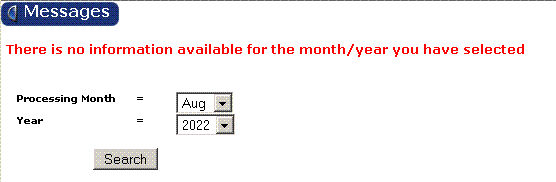
Figure 13-8 A tabbed search which hides the empty results
The hideWhenEmpty property controls which method WOW uses to display empty tab results. When hideWhenEmpty is true, WOW will not display any results; if it is false then an empty Row Collection will be displayed. If the hideWhenEmpty property is not specified, it defaults to the same value as the automaticTabView property, described in the previous section
You can also define a message to display to the user when there are no results using the emptyMessage property.
Tabs {
hideWhenEmpty: true;
emptyMessage: There is no information available for the month/year you have selected;
}
13.4.7 Changing Tab Field Order
On each field descriptor there is a display order. Fields with the lowest display order will get listed first.
The exact behavior is:
1) Find the field with the lowest display order. 2) Put that field and any other fields within the same field set together then get the next lowest field set and display those. 3) Note: In the FD Manager, there is an operation on the left called “display properties” that will allow you to set the display order and field set from an updateable table so you do not have to go into each FD one at a time.
13.4.8 Hiding Search Parameters
There are times when you may want the search parameters for the Tab Parent operation to only be displayed long enough to perform the search successfully. Using the alwaysShowSearch property, you can specify whether the search parameters should continue to be displayed (default behavior), or if they should be removed to provide more space for displaying the results from the Tab Parent operation:
Tabs {
alwaysShowSearch: false;
}
There are 2 settings for this property:
- true – Always show the search parameters in the Tab Parent operation. This is the default value if this property is omitted.
- false – Once the Tab Parent operation successfully shows a record (row), hide the search parameters.
The alwaysShowSearch property is specified in the tabbed operation, not the tab data operation.
13.5 Further Tab Customization
This section describes advanced techniques for customizing the layout and appearance of tabs, and is recommended for JSP programmers only.
WOW uses 5 JSP's to display a typical tabbed screen:
Figure 13-9 A tabbed screen
Here is the same tab screen, overlaid with different colors to distinguish the different JSP's:
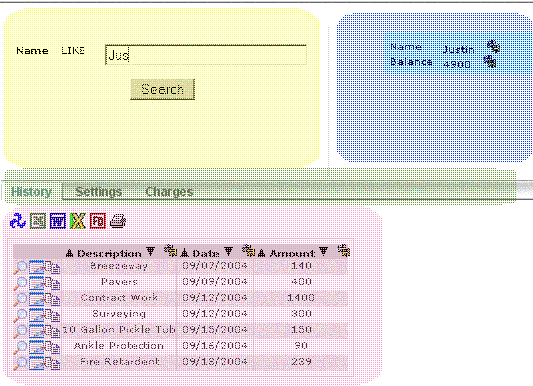
Figure 13-10 A tabbed screen where the component JSP's are identified by color overlays
By replacing one or more of the WOW default JSP's with your own custom JSP's you can completely control the manner in which tabs are displayed to the user. Each of the 5 different JSP's are discussed below:
Parameters JSP (yellow overlay) - This JSP displays the parameters of the tabbed operation to the user. If you want to use a JSP other than the WOW default, specify your JSP in the "Parameters JSP" field of the tabbed operation
Results JSP (pink overlay) - This JSP displays the results of the tab data operation. If you want to use a JSP other than the WOW default, specify your JSP in the "JSP File" field of the tab data operation
Tab Parent JSP (blue overlay) - This JSP displays the contents of the tab parent row. If you want to use a JSP other than the WOW default, specify your JSP in the Tabs property group of the tabbed operation (see below)
Tab Headings JSP (green overlay) - This JSP displays the tab bar & tab labels. If you want to use a JSP other than the WOW default, specify your JSP in the Tabs property group of the tabbed operation:
Tabs {
defaultTab: C_HISTORY;
tabParentJSP: /jsp/myTabParent.jsp;
tabHeadingsJSP: /jsp/myTabHeadings.jsp;
}
Tab Layout JSP (entire screen) - This JSP is responsible for positioning the four other JSP's. Those four JSP's are all contained within the tab layout JSP. If you want to use a JSP other than the WOW default, specify your tab layout JSP in the "Details JSP" field in the tabbed operation.