|
Chapter 15 |
15. Running Your Applications
15.1 Running SQL Queries and Operations
After creating the different operations as shown in the above chapters it’s now time to run the application. This section will assume that you have entered your user ID and password and successfully logged on to WOW. The screen shot below is what the screen should look like after a successful login. (You may have fewer applications, and they will be named differently than the ones shown in the screen shot.)
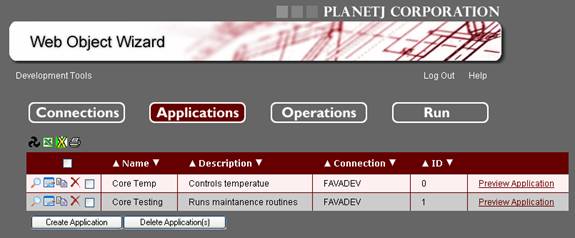
Figure 15-1 This is an example of what the first WOW screen might look like after signing on. The applications displayed will very depending on how many applications you have created.
After you have successfully logged on with your user ID and password, select the application you would like to run. Then click on the Step 4 button ‘Run!’ on the left side of the screen. Alternatively, you can click the Preview Application link next to the application you wish to run. In either case, a new browser window will open up and execute your application. By default, your operations can be found in their respective display groups under the drop down menu bar near the top of the window.
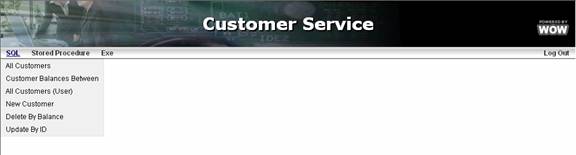
Figure 15-2 An example of specific operations that were created. Clicking any of the Operations listed in the Table of Contents will cause the corresponding Operation to be run.
Each one of these links corresponds to a different operation. Your application may have more or fewer operations listed. Notice the different Display Groups: “SQL”, “Stored Procedures”, “Exe”; these different Display Groups were created by changing the “Display Group” from “default” to a more descriptive name as described in the Operations chapter.
Clicking on a link will execute that link’s operation. Operations which query the database will display their results directly on the screen. If your operations use runtime prompting, the user will be prompted for the required values when the operation’s link is clicked. Below is a screen shot of what a runtime prompt may look like:
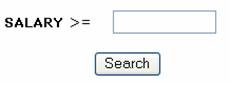
Figure 15-3 A runtime prompt. This was created using a question mark (?) in a specific SQL Operations.
15.2 Running WOW Applications by URL
To run a WOW application directly, without going through the WOW builder you must first know the ID of the application you wish to run. The application ID is located in the second-to-last column on the “Applications” screen. For example, the applications in the screen shot below have IDs of 0 and 1:
Figure 15-4 The application ID appears in the rightmost column
To run an individual application (the ‘Core Temp’ application in this example) use the URL shown below replacing ‘planetjavainc’ with the URL of WOW on your machine, and 0 with the ID of the application you want to run:
http://www.planetjavainc.com/wow/runApp?id=0
This is the URL of WOW followed by “runApp?id=0”. Make sure to capitalize the word App but keep the word run in lowercase. The screen shot below shows the web browser after the above URL has been entered in.

Figure 15-5 Running an individual WOW application by using its unique application ID number.
The URL does not have to be directly typed into a browser; you could also create a link to it from another web page that users would click on to run the application. If your application is in an application library you will need to append that onto the URL as well, as described below
15.2.1 Running Applications in Application Libraries
If you want to run an application which is in an application library other than the default one, you must also specify the application library on the URL. (See the Application Library section of the Applications chapter for more information about application libraries.) You first take the application’s URL as defined above, and append the text:
&_pj_lib=<APPLIB>
where <APPLIB> is the name of the application library containing the application. For example, if we wanted to run the application with id 269 in the application library TEMPLIB, the URL would be:
http://www.planetjavainc.com/wow/runApp?id=269&_pj_lib=TEMPLIB
Of course, you will have to replace planetjavainc with the URL of your web server. Note that the above URL does not contain any spaces – just underscores. Keep in mind that it is possible for two different applications to have the same application id if they are in different application libraries.
15.3 Directly Executing Operations
The normal way to execute an operation created with WOW is through an application. The user clicks a link, taking them to the main page of an application and the available operations for that application are then available from a left-hand TOC or a drop-down menu (default). However, it is also possible to directly execute an operation without going to any intermediate pages. To do this, you must first know the ID of the operation you are going to execute. You can find an operation’s ID by choosing to edit that operation, and then scrolling to the ‘Internal’ section at the bottom of the page:

Figure 15-6 Locating an operation’s ID
Once you know an operation’s ID, you can directly execute that operation by going to a URL similar to this one:
http://www.planetjavainc.com/wow/runApp?opid=3
The above URLs would directly execute operation 3 on the PlanetJ website. You should replace 3 with the id of the operation you want to directly execute, and www.planetjavainc.com with the URL of your server.
If you choose to directly execute an operation that is part of a secured application you will have to sign on to that application before the operation is executed, unless you have already signed onto that application
You can also pass parameters to operations which are directly executed in one of two ways: by name or by index. For example, say the operation with an ID of 10 has this code: SELECT * FROM PJDATA.CUSTOMER WHERE NAME = ? and BALANCE = ?,. To directly execute this operation looking for customers whose name is John and whose balance is 400, you could specify the parameters by name on the URL like this:
http://www.planetjavainc.com/runApp?opid=10&BALANCE=400&NAME=John
You can simply list out the parameters using the “name=value” format, separated by ampersands.
Alternatively, you could specify the parameters by index like this:
http://www.planetjavainc.com/runApp?opid=10&_parm1=John&_parm2=400
(Note that there are no spaces in the above URL, just underscores). When specifying parameters by index you list them on the URL using the “_parm1=value1” format, separated by ampersands (the first parameter has an index of 1). Specifying parameters by index can be useful when two parameters in your operation have the same name (e.g. SELECT * FROM PJDATA.CUSTOMER WHERE BALANCE > ? AND BALANCE < ?). If you specify parameters by name, there is no way to give these two parameters (both named BALANCE) different values.