|
Chapter 17 |
17. Further Customization
17.1 Customization Overview
Creating a custom theme, as described in the previous chapter allows you to change the look and feel of WOW. It is possible to further customize WOW by directly modifying its JSP display files, allowing you to add images, links, or other custom layout elements. Modifying the WOW JSP’s should only be done by users who are familiar with the basics of HTML, and are comfortable working with HTML source files.
17.2 Customization Example: Adding a Hyperlink
This section will go step by step through the process of customizing the following screen:
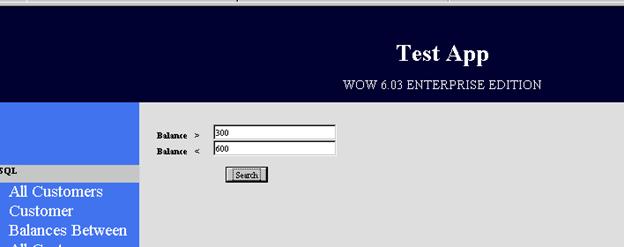
Figure 17-1 The query before customization
You can pick a sample query screen in one of your applications and perform each step as it is described – the customization are not dependent on the SQL used to generate the screen. In this example, we want to add a general disclaimer above the search, linked to a page describing the limitations of the search. To do this, we will be altering the dea_results.jsp file. This file is located in the /dataengine/application/jsp directory of the WOW web files. It controls the displaying of parameters and results of SQL queries.
We will not modify the dea_results.jsp file itself, instead we will make a copy and then modify the copy. This has two advantages – first if we make a mistake during the modification we will still have the original file available. Second, modifying the dea_results.jsp file would affect every parameter and results table which WOW displays. We only want to modify the displaying of parameters and results for one specific search. After we change our copy of dea_results.jsp we will tell WOW to use our modified JSP file for our Balance query – WOW will continue to use the unmodified dea_results.jsp file for all other queries.
As shown in the following screenshot, we create a new directory structure /customized/balance/jsp to hold our copied JSP, which we have renamed balance_results.jsp:
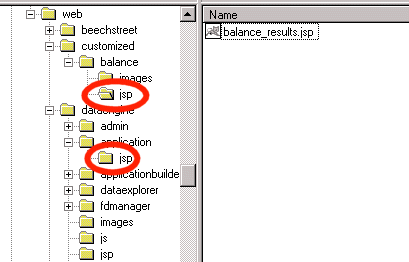
Figure 17-2 New directories to hold customized files. The old (bottom) and new (top) locations of the dea_results.jsp file are circled. The dea_results.jsp has been renamed.
Creating an alternate directory structure to hold customized files is highly recommended. It makes it much easier to keep track of which customized files belong to which queries and applications.
Next, open the copied JSP (balance_results.jsp in our example) in an editor. You can use Notepad, or your favorite HTML editor. Do a search for the word CUSTOMIZATION. You should find this section of text:
<%-- CUSTOMIZATION
Here is where you can add any images/HTML code that you want to appear before your query prompts AND result tables. Unless you want these changes to affect every single application & query, you should make a copy of this JSP and alter that JSP. To have your query use the new JSP, specify that JSP as the body JSP in the LayoutDisplay property group of your Operation:
LayoutDisplay {
body : /dataengine/myapplication/jsp/mynewjsp.jsp;
}
--%>
In general, when editing the WOW JSP’s, you should look for commented sections containing the keyword CUSTOMIZATION. These sections are placed in the most common customization areas.
In our case, we want to add a disclaimer link above the search parameters. Right above the line containing the CUSTOMIZATION keyword, paste in this text:
By using this search, you agree to our <a href=”http://www.ibm.com/legal/us/”>terms and conditions</a><br>
Don’t forget to save the changes you have made.
Finally, we need to tell WOW to use our customized JSP instead of the default one. Using the WOW builder, navigate to the operation whose display we are altering. Go to the JSP File field in the Advanced section, and enter in the location and name of the new JSP file. (In our example, we enter in “/customized/balance/jsp/balance_results.jsp”.)
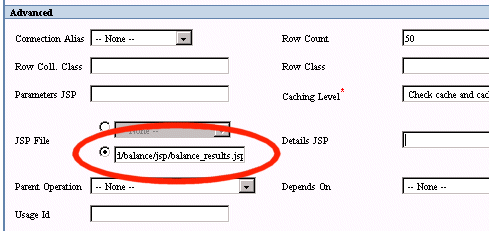
Figure 17-3 Altering the JSP file used by an operation
Save your changes, and rerun the operation. WOW will use your customized JSP, and display the disclaimer:
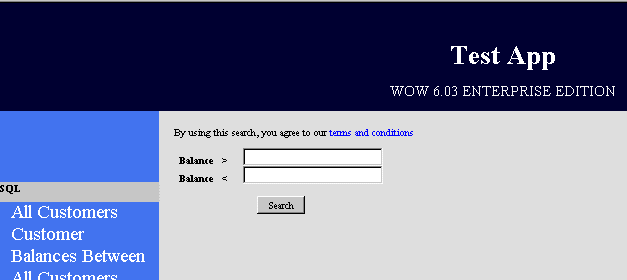
Figure 17-4 The example query, after customization
Clicking on the link will take you a sample disclaimer on IBM’s website, but you could build your own disclaimer and display it instead. Although in this example we added a hyperlink, the same technique can be used to add images or any other type of HTML to the WOW screens.
17.3 Customizable JSP’s
WOW uses many different JSP files when creating HTML. The following table contains the JSP’s that are most commonly customized:
|
JSP File |
Location (in /dataengine folder) |
Description |
|
dea_results |
application/jsp |
Surrounds the parameter entry and results table sections |
|
dea_template |
application/jsp |
Main page; coordinates the positioning of the header, TOC, and main body section |
|
default_edit_buttons |
jsp |
Renders the row of buttons displayed when editing a row |
|
default_params |
jsp |
Displays the entry fields for search parameters |
|
default_results |
jsp |
Displays the HTML table containing the query results |
For more details on customizing JSP’s, reference the WOW Programmer’s guide.