|
Chapter 18 |
18. WOW File Server
18.1 WOW File Server Setup
WOW can be set up as a file server, serving files from a specific directory. Any type of binary file can be served using WOW. Below will demonstrate how to set up the WOW file server using an HTML Reference Operation. HTML Reference Operations are described in the WOW Builders Guide. We’ll assume you already have set up a Connection and Operation if not refer to Section 2 Creating a Connection and Section 3 Creating an Application in the WOW Builder’s Guide.
Within the WOW Tomcat 5.0 directory is a sharedFiles folder. If you chose the default installation of Tomcat 5.0 the location will be C:\Program Files\Apache Software Foundation\Tomcat 5.0\webapps\. If an alternative path was chosen it will be located within the webapps folder like in the illustration below:
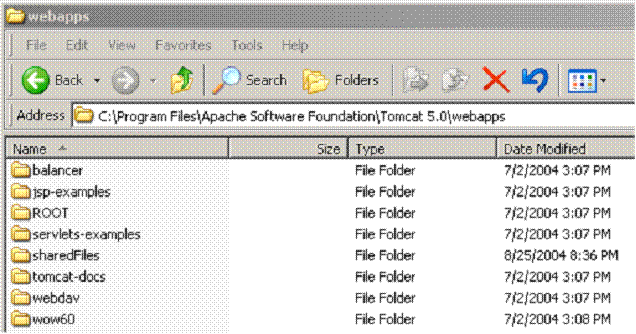
Figure 18-1 The figure above shows where the contents of webapps folder
By Default the sharedFiles folder includes three directories: one directory contains sample images and another directory contains sample MS Word Documents. These folders are for example purpose only and may be deleted or added upon. There is also a directory labeled WEB-INF. This folder contains data which allows WOW to be set up as a File Server. Now you simply need to use Windows Explorer to drag and drop any kind of binary files such as MP3s, documents, pictures, etc.
NOW sign onto a WOW account, we will only be setting up the WOW Operation in the section. To setup a WOW Operation we will need to click the INSERT button located within the WOW Application, bringing us to a screen like shown below:
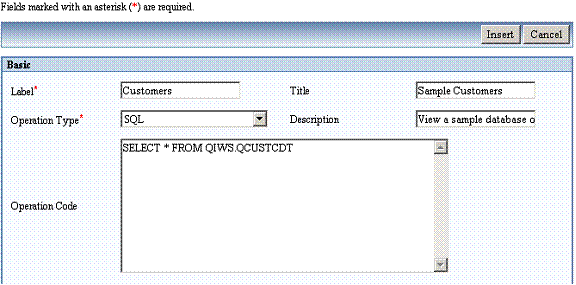
Figure 18-2 The Illustration above shows a standard WOW Create Operation Screen.
Now we will add the HTML Reference Operation. The first step in adding the HTML Reference is to select HTML Reference from the Operation Type Drop-Down Menu. After that We will reference the sharedFiles folder in the Operation Code as shown: http://yourappname..com/sharedFiles/. Please replace yourappname.com with the appropriate address. Label, Title, and Description can be edited as seen fit. Below is an illustration with the property settings already added.
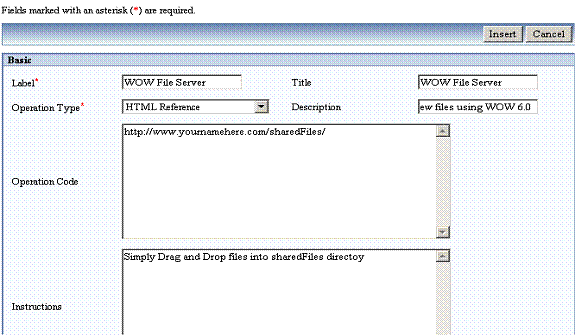
Figure 18-3 The Illustration above shows the operation properties for the WOW File Server.
After we hit the Insert button our WOW File Server customization will be ready to preview. This can be accomplished by clicking the Step 4 RUN button like shown below:
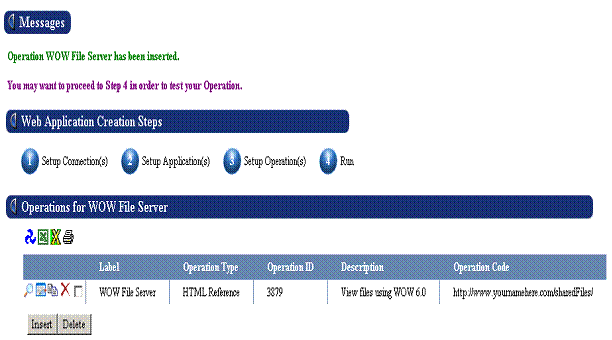
Figure 18-4 Click on the run button above or Step 4 in the WOW IDE to preview the WOW File Server.
Below shows an illustration of WOW being used as a File Server. It’s just a Drag and Drop Away. Notice the contents of the directory; it includes both directories and specific files.. WOW is configured to allow for the use of virtually every file type imaginable.
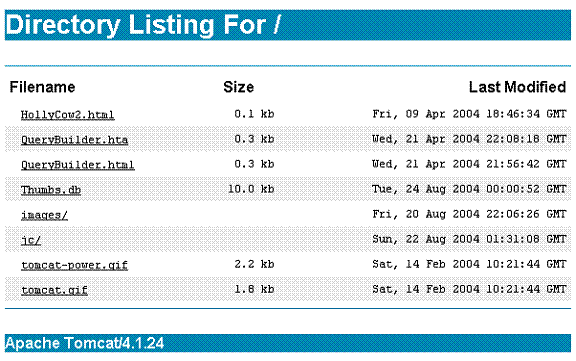
Figure 18-5 The illustration above shows the contents of the sharedFiles folder located in the Tomcat Install.