|
Chapter 19 |
19. WOW Security Protocols
19.1 Securing Applications
WOW contains multiple ways of securing applications, shown in the drop down below. When creating or editing an application, you can choose which type of security it uses. All of the security options are described below.
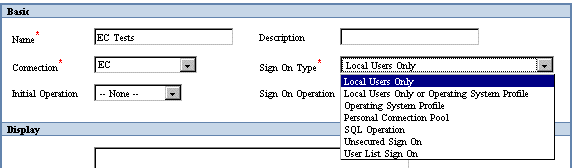
Figure 19-1 The above screenshot shows different types of application security( See Sign-On Type in section 2.3)
When a user attempts to use an application, WOW examines the IP address of that user. If the IP indicates that the user is on the local network (i.e. not connecting via the Internet) the user is allowed to use the application. Otherwise the user is locked out and cannot use the application.
19.1.2 Local Users Only or Operating System Profile
This sign on option allows local users (as described above) to access the application without entering a user ID or password. Non-local users must enter a user ID and password recognized by the underlying operating system (or database system) before using the application.
19.1.3 Operating System Profile
This type of sign on can be useful to validate a user against an operating system. This feature works by validating a user ID and password against the database. Users with a valid database sign on will be allowed to use your application – those who cannot sign onto the database will be locked out of the application.
19.1.4 Personal Connection Pool
The Personal Connection Pool sign on validates a user ID and password against the database, much like the Operating System Profile sign on. However, when an application uses the Personal Connection Pool sign on method, all database accesses by that application will be tied to the profile of whichever user has signed onto the application and requested that database access. All other sign on methods use a shared pool of database connections when accessing the database – this can significantly improve performance but means that the database cannot determine which particular user is accessing it, only which application is doing the access. This sign on type should be selected when the database needs to know which user is accessing it.
You can use the HTTP Referrer sign on to allow only users coming from a certain web page into your application. This can be useful when combining an existing web site with WOW – when the user arrives at a WOW application from a page on the existing web application you may not want to force the user to sign on again. It is possible, though unlikely, that someone with an understanding of the HTTP protocol could trick WOW into thinking they came from a particular page.
To use HTTP Referrer sign on, you must first create an operation of type “Referrer Authorization”. In the operation code list the comma separated URL prefixes of permitted referrers. For example, if your operation looked like this:
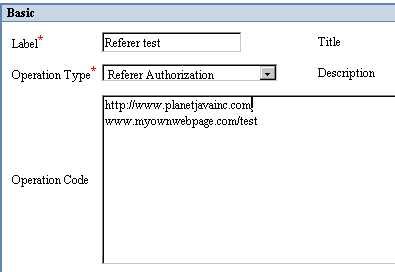
Figure 19-2 A Referer Operation used to secure an application
Users coming from the following pages would be granted access to your application:
http://www.planetjavainc.com/wow
http://www.myownwebpage.com/test
Users coming from http://www.myownwebpage.com would not be given access
This type of authentication allows for a very versatile way to secure the sign-on of an application. SQL Operation sign on is the most powerful type of application sign on. It allows for a couple additional features to be used; Securing Operations (as described later in this chapter) and using user properties as parameters in other operations (as described in the Parameter section of the WOW Features chapter).
SQL Operation sign on requires that the given application contains an authentication operation. An authentication operation is a regular SQL Operation that has a different type (authentication) to denote that it should be used for sign on authentication. This allows any number of values to be retrieved as user properties, as well as allowing authentication against any data in the database. See the two examples below for more details.
SQL Operation sign on example 1
To properly setup an Application with a Sign On Type of SQL Operation, the user must specify this setting while editing an Application. Once this is set, the user creates the SQL Operation that will be used to authenticate the Sign On. To do this, create an SQL Operation for the Application and set the required property of Operation Type to Authentication.
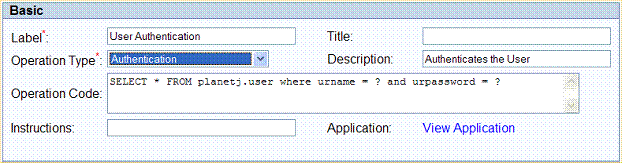
Figure 19-3 The above screenshot shows the prompt that will appear when Table Authentication is used.
The user must specify the SQL Query that contains the field or fields to be authenticated against. Save this information with the Operation and run the Application. A screen should appear that presents TextFields for the fields specified in the query and a “Login” button.
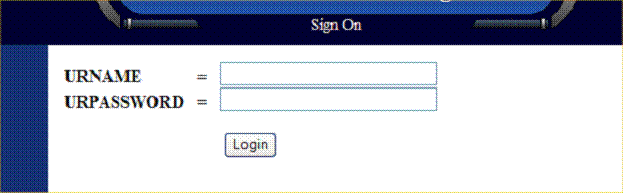
Figure 19-4 The above screenshot shows the SQL Operation Sign On Screen.
The order of the fields presented on the screen is determined by the order of the fields in the SQL Operation. In order to provide nicer values for the labels on the TextFields, be sure to specify the external name in the Field Data for that file.
When the login button is pressed, the authentication operation is run using the values the user supplied. If the operation returns any rows from the database, the sign on is successful. If no rows are returned, the sign on fails.
SQL Operation sign on example 2
This example is the same as example 1, but the SQL is different to give a more clear explanation of how user properties and sign on fields are generated. In this example, we will also authentic against the same table as the first example, but we will change our SQL. This time, we will authenticate against the user name, user password, and last name columns of the table.
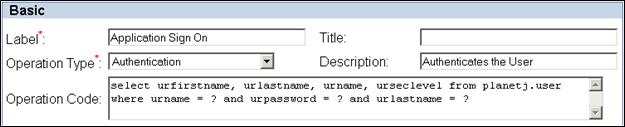
Figure 19-5 The above screenshot shows the create operation page showing this examples Authentication Operator’s SQL.
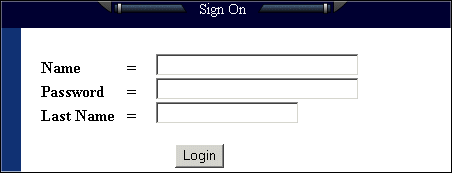
Figure 19-6 The above screenshot shows the sign on screen when signing onto an application using this example Authentication Operation.
You’ll notice that this example selects certain fields from the user table. These fields may then be used by other operations as parameters. For example, the query
SELECT * FROM PLANETJ.CUST_DATA WHERE F_NAME = ???URFIRSTNAME
would select from the CUST_DATA table where the F_NAME field contains the same value as the URFIRSTNAME field in the current user’s row of the USER table. (See section 10.1 for more information on user parameters.) In addition, the urseclevel field selected has a usage id (see Appendix A) set to denote that it’s a security level field. This means that the application could contain operations that are secured by level and each user signing in would have a security level (see the next section for more information on security levels).
Multiple Sign On Operations
Most applications which use SQL for signing on do so in a single operation. However, it is possible to use multiple operations for a single sign on. For example, on the first screen you may want to have the user enter in his or her ID and check that against the list of authorized users before presenting the user with a second page for entering in a password.
To configure your application to use two sign on operations (as in the above example) follow these three steps:
1.) Define both of your operations normally. Be sure to set their operation type to Authentication. This is a screenshot of the first operation (for checking the user’s name):
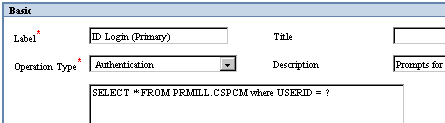
Figure 19-7 The primary sign on operation – it ensures that the ID entered by the user corresponds to a row in the DB
This is the second sign on operation (for verifying a user’s password):
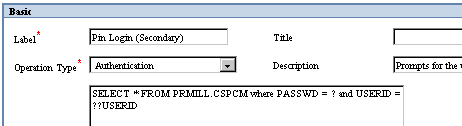
Figure 19-8 The secondary sign on operation – it ensures the correct password for a user has been entered
Notice that this operation refers to data returned by the first operation with the double question mark syntax (??USERID). This is necessary because we need to check not only that the password is valid, but that it is valid for the particular user ID obtained from the first operation
2.) In the second sign on operation, the first sign on operation must be identified as the parent operation. This lets WOW know that after running the first operation, the sign on isn’t complete until the second operation is run as well.
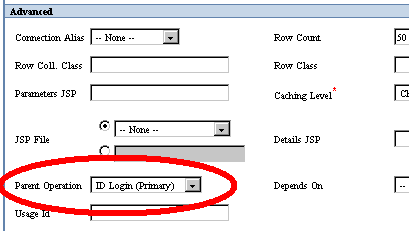
Figure 19-9 Specifying the primary operation as the parent of the secondary operation
3.) Finally, the application’s sign on type should be set to SQL Operation, and the primary (first) sign on operation specified. Now the application is set up to use multiple sign on operations.
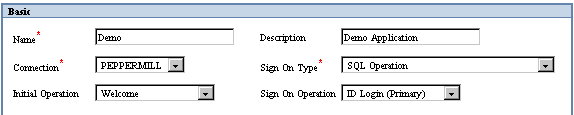
Figure 19-10 Setting the Application’s sign on type and sign on operation
This type of sign on is useful for applications showing public information. It is just as it says; unsecured, meaning the application does not require any type of authentication in order to view the application and its operations.
19.1.8 User List Authentication Operation
An application can be secured by creating a User List Authentication Operation which is defined by a comma separated list of user names and passwords. When the user logs on to an application with list based security they are prompted for their user name and password. This is a useful option when the WOW developer wants to quickly implement application level security for a small group of users without having set up table or user profile based security.
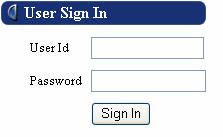
Figure 19-11 The above screenshot shows an example of the sign on generated when using a user authentication list operation.
Current Application - Create Operation
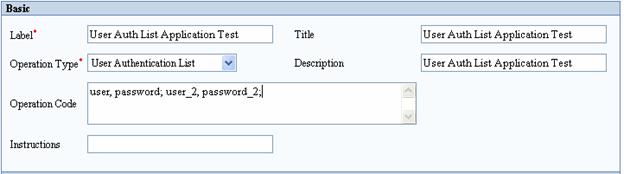
Figure 19-12 The above screenshot shows an example of creating a User Authentication Operation.
The user name and password are separated by a comma. The name password pairs are separated by a semi-colon.
After the authentication operation has been created it is assigned to the application.
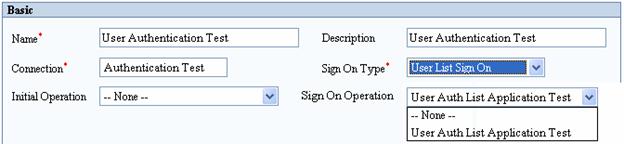
Figure 19-13 The above screenshot shows how to assign the user authentication list operation to the application.
19.2 Securing Operations
WOW has a powerful security feature that can be set from within each individual operation. The security measures within the operations are used to allow only certain users with a specific security level to view operations. Every user (anonymous or otherwise) by default has a security level of zero, unless otherwise specified. WOW uses a simple number scheme to control which users can view certain operations within a specific WOW Application. When an operation is set to a security level of 0, all users will have access to that operation. When an operation is set to another security level, only users with security level equal to or higher than the operation’s security level will have access to that operation. An operation’s security level can be set in that operation’s detail screen. The Security options are found under the Administration section as show in the screen shot below:

Figure 19-14 The screenshot above shows where the security settings within the operation detail screen can be set. Security Type and Security Level are the two settings used to control security.
Security Settings
Security Type: The Security type is where you set the initial security level. Security Type has two available settings. Level Security is the most powerful of the settings. It uses a numbering scheme to allow access to specific operations.
Level Security – This is the most the most powerful of the security settings that are available within WOW. When Security Type is set to Level Security it allows the application builder to give Operations a specific number which determines which users have access to that Operation.
Operation Security – This security setting allows a very versatile way to secure operations. When Security Type is set to Operation Security, it allows the application builder the flexibility to utilize any file. The Operation Security setting requires that the Execute Authority Operation be set to a User Authorization operation.
See section !hSecuring Fields and Operations with User Authorization Operations!h for more details.
Unsecured – An unsecured Operation has no security measures. This means that anyone who uses WOW can use that Operation. This is similar to a security level of 0 when using the Level Security Feature. An unsecured SQL Operation can be viewed by anyone with access to that application.
Secured Operation Example
This example is can also be found under the “Level Based Security” application provided with the sample applications. This example assumes an application has already been created and has its sign on type set to SQL Operation.
First, we need to create an Authentication Operation to use for authenticating users. Follow steps provided previous in the chapter on how to create an authentication operation. For this example, the Authentication’s Operation SQL will be:
select seclevel from planetj.user where email = ? and password = ?
This sign on Operation will validate the email and password given by a user and if valid, store that user’s urseclevel Field’s value as a user property. Listed below are some of the Fields and values that can be found in the planetj.user table. There are actually more columns than listed, but we only need three for this example.
|
URNAME |
URPASSWORD |
URSECLEVEL |
|
joepublic |
j949 |
0 |
|
peterpoweruser |
trustno1 |
6 |
You’ll notice that Joe Public has a security level of 0 and Peter Poweruser has a security level of 6. This value will be stored as a user property when each of them sign in to the application.
Next, we create another operation, this time just a regular SQL Operation. Its operation code can be set to:
select * from planetj.emp
This operation should also be secured. To do this, set the operation’s security type to Level Security, along with a level of 2.

Figure 19-15 The screenshot above shows the setting of operation's security type to level security with a level of 2.
Now when the two users sign on, neither will be able to see this operation. Peter Poweruser has a security level of 6, so why can’t he see it? There’s one more step that needs to be done. The SecLevel Field is being stored as a user property, but in order for the security feature utilizing Level Based Security to pick it up, the SecLevel’s FieldDescriptor needs to have its usage id set to -160. This usage id value denotes a Security Level Field.

Figure 19-16 The screenshot above shows the setting of a Field Descriptor’s usage id to -160 to denote a Security Level Field
Now when Peter Poweruser signs in, he will be allowed to see the Operation for view employees, where as Joe Public still cannot see it because his security level field value is not greater than or equal to the Operation’s security level.
19.3 Optional Sign On
In some scenarios, you may have an application with certain operations that anyone can use and other operations to which only certain users have access. In this case, you may want to let users access your application without signing on, as long as they limit themselves to the operations available to everyone. To allow users to access the application without signing on, but still allow them to sign on if they want to, check the “Optional Sign On” checkbox in the application details screen:

Figure 19-17 Check the optional-sign on checkbox to make signing on to your application optional
When a user starts an application whose sign on is optional, they are presented with a screen similar to this one (the operations will vary depending on the application):
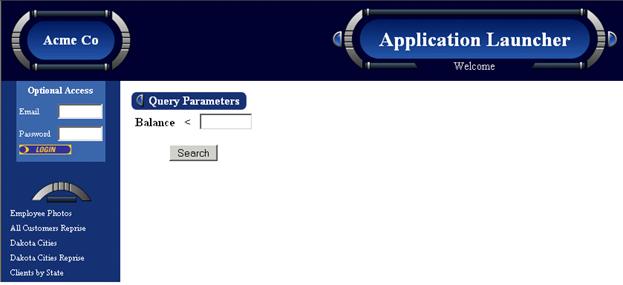
Figure 19-18 The Optional Sign On area of WOW
There is a sign on area in the top left of the screen which the user can use if he or she wants to sign on. If the user does not sign on, then that user has a security level of 0, and only has access to operations which also have a security level of 0. Once signed on, the user has a security level determined by the userid used to sign on, and will have access to all operations with a security level equal to or less than the user’s security level.
Optional Sign On is only supported when the sign on type is SQL Operation.


19.4 Table Authorization
WOW allows you to control access to the tables used by your application. By default all users are permitted to access a table in any way your operations allow. In order to restrict the ways in which users are allowed to access a table you create a user authorization operation and then specify that operation in a table descriptor, as described below.
Using Table Authorization
In this example, we will restrict the users who are allowed to delete from our table. (It is also possible to restrict the users who may read, update, and insert from a particular table.) Here is the result of selecting rows from our table, before we restrict deletes.
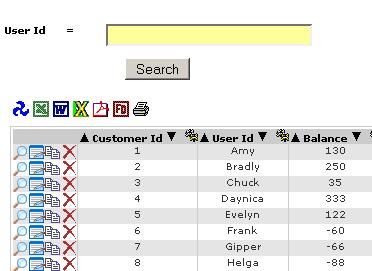
Figure 19-19 The operation results, before deletes are restricted
The first step is to create a user authorization operation. This operation will return a list of the users who have authority to delete from the table. (User authorization operations are covered in more detail earlier in this chapter.) This is what our user authorization operation looks like:
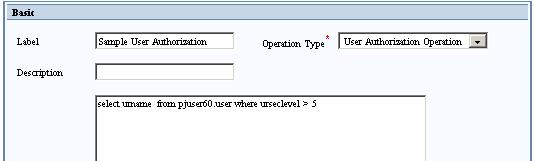
Figure 19-20 The user authorization operation
The SQL in the operation may use the "??TABLE_NAME" parameter to refer to the table whose authority is being checked. This allows a single user authorization operation to be used by multiple tables.
This user authorization operation must now be specified in the table's table descriptor. To locate the table descriptor, open up Field Descriptor Manager, and go to the FDs for that table. (See the Field Descriptors Chapter for more information on Field Descriptor Manager.) The table descriptor will have the same name as the table, except it will be prefixed with a tilde (~). In our example, we are working with the CUSTOMER table, so the table descriptor is named "~CUSTOMER".
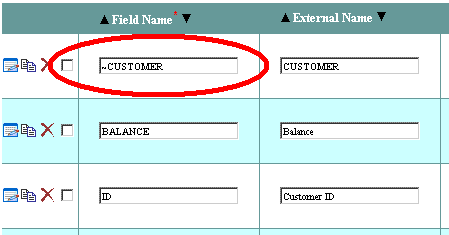
Figure 19-21 Finding the table descriptor
Edit the table descriptor, and in the Authorization Settings section, look for the Delete Authorization Operation field. Set the value of this field to the user authorization operation created earlier. (To restrict reads, updates, or inserts set the authorization operation in the appropriate field.)
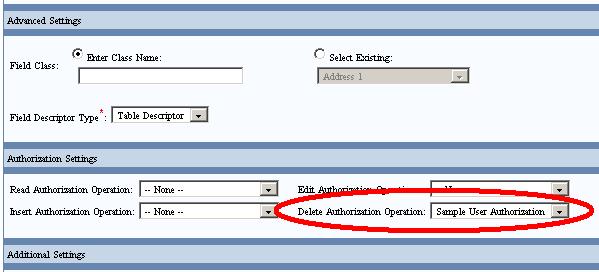
Figure 19-22 Setting the delete authorization operation
Now any operation which accesses the CUSTOMER table will prevent unauthorized users from deleting rows from the table. Note that the table descriptor is associated with a particular connection alias, so the security restrictions will only apply when the table is accessed using this connection.
If signing on as a user without authority to delete from the table, select rows from the table will not be displayed.
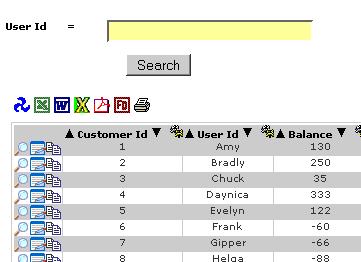
Figure 19-23 Rows selected from the table after deletes have been restricted
Figure 19-24
19.5 Securing Fields and Operations with User Authorization Operations
Overview
User authorization operations give the developer the ability to restrict a user from viewing and/or editing any fields or operations based on sign on.
Two types of Authorization Operations are available.
- User Authorization List Operation
- User Authorization (SQL) Operation
Authorization Operations should only be referenced by fields/operations included within secure applications
The field/operation being secured must exist within a secure application that requires a sign on.
If the user has not signed on to the application or the application does not require a sign on then authorization will fail and the user will not have access to the field/operation.
User Authorization List Operation
This type of operation holds a static list of user names that is defined when the authorization operation is created.
The list of user names cannot be changed except by changing the authorization operation itself.
This is authorization operation is useful when a small number of users will have restricted access to certain fields and/or operations.
Creating User Authorization List Operation
Current Application - Create Operation

Figure 19-25 This is the screen where the application builder creates the User Authorization List Operation. Each relevant setting is described below.
Basic
Operation Type - User Authorization List
Operation Code - Comma separated list of user names
Only a user that is signed on with one of the four names listed in the Operation Code will have access to the field/operation being validated against.
User Authorization (SQL) Operation
This type of operation is a more dynamic solution than the user authorization list.
An SQL statement is defined that returns a result containing a single column of user names.
If the current user is not in the list they will be denied access to an operation or have restricted access for the field being validated against.
This type of authorization operation is useful in cases where there are a large number of users that will have restricted access to certain fields and/or operations.
Creating User Authorization (SQL) Operation
Current Application - Create Operation
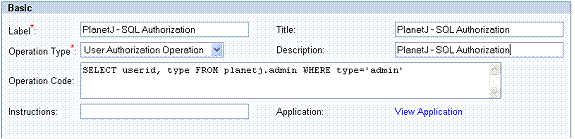
Figure 19-26 This is the screen where the application builder creates the User Authorization Operation. Each relevant setting is described below.
Basic
Operation Type - User Authorization Operation
Operation Code - SQL that will return a list of valid user names in the first column of the select statement
The first column in the SELECT statement should contain the user names that the signed on user will be validated against.
Other columns may be added to the select statement to conditionally select what users should be authorized to the current field or operation.
Other columns defined in the SQL will not be included or checked against while validating against the current users name/id.
Field Level Authorization
Access to a field may be restricted in two ways.
- Authorization to Read - Authorized users has access to view the field but not necessarily edit the field.
- Authorization to Edit - Authorized users has access to edit the field. This applies only if the field is visible to them.
A field may be secured for Read or Edit by either type of authorization operation.
Both types of access can be used together to provide field security that may be:
- Visible/Editable by a group of users while hidden from another group.
- Visible/Editable by a group of users while Visible/Not Editable to another group.
- Visible/Not Editable by a group of users while Not Visible from another group.
Assigning an Authorization Operation to a Field
A Field Descriptor should already have been created for the field that requires the authorization operation.
In the field descriptor:
Authorization Settings

Figure 19-27 This is the screen where the application builder sets the Authorization Operation on the Field to be secured. Each relevant setting is described below.
Authorization Settings
All Authorization Operations defined for the current application should appear in the drop down selection.
Read Authorization Operation - Only users returned by the Authorization Operation will have access to view this field. If no operation is selected all users with be authorized to view this field.
Edit Authorization Operation - Only users returned by the Authorization Operation will have access to edit this field. If no operation is selected all users with be authorized to edit this field.
Both User Authorization List Operations and User Authorization Operations apply.
Assigning Authorization Operation to an SQL Operation
Current Application - Edit Operation

Figure 19-28 This is the screen where the application builder sets the Authorization Operation on the SQL Operation to be secured. Each relevant setting is described below.
Administration
Security Type - Operation Security
Execute Authority Operation - All Authorization Operations defined for the current application should appear in the drop down selection. If no operation is selected all users with be authorized to execute this operation.
Both User Authorization List Operations and User Authorization Operations apply.