|
Chapter 21 |
21. WOW Utilities
21.1 WOW Utilities Overview
WOW is packaged with a set of utilities that helps the application builders manage different aspects of WOW. The three utilities included will help you manage different user accounts, theme management, and keyed possible values management. Themes are discussed in more depth in Chapter 16.
21.2 Users
The Users drop-down menu in WOW Utilities contains two operations. Add Users and View Users like shown in Figure 17-4. User accounts are used for security purposes within WOW. If an application’s security type is set to “SQL Operation”, as described in the Security Chapter then the email address and password will be used to enter these ‘secure’ applications.
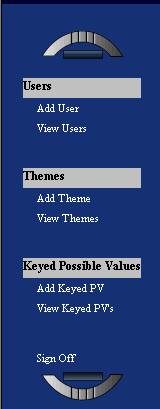
Figure 21-1 Above is the Table of Contents shown after sign-on. Section 17.3 of this chapter is dealing specifically with the Add and View User operations shown in the first section under Users.
Add User
Adding
a new user is a very straight-forward process. Simply click on the Add User
Operation like shown in the screen shot above to set-up a new user. The
screenshot below shows an example of the Add User Operation.
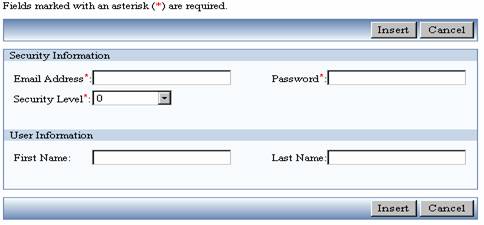
Figure 21-2 The Screenshot above shows the Add User Operation.
Security Information
User Name – This is the
user name that will be used to sign on to secure operations within WOW.
Password – This is the password that will be used in conjunction with
the User Account being created.
Security Level – This is the security level available for the user.
Security levels were discussed in detail in Chapter 15.
User Information
First Name – This is the
first name of the user account being created.
Last Name – This is the last name of the user account being created.
Additional Properties
Theme – ###
View User
The View User screen simply displays the user accounts that have already been created within WOW. The screen shot below will be very similar to the screen displayed after initially signing on to the WOW Utilities.
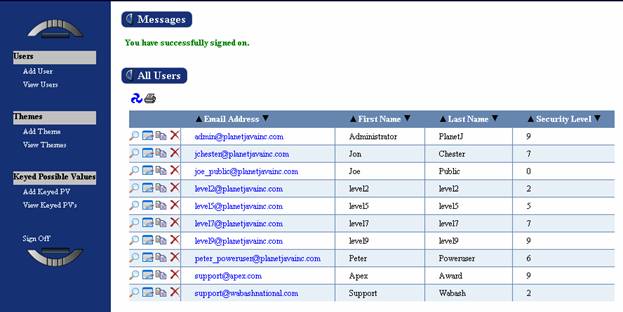
Figure 21-3 The screenshot above shows view users operation. This screen is similar to the initial screen displayed after signing on to the WOW Utilities.
21.3 Themes
Themes are the look and feel applied to your WOW Applications. Themes were described in detail in the Chapter 16 of this guide. The Themes section of the WOW utilities contains two operations. Add Themes and View Themes.
Add Theme
Theme properties are contained within specific CSS files. This Chapter will
not explain the process of creating a theme, when adding a theme WOW assumes
the CSS file has already been created and it simply needs to be added to the
list of available themes. The screenshot below shows the Add Theme operation
screen. After adding the relevant information simply hit the insert button to
add the new theme.
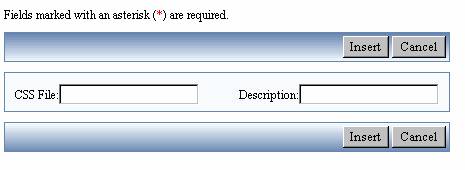
Figure 21-4 The screenshot above shows the add theme operation.
CSS File – This is the location of the CSS file that contains the properties for the newly created theme. The location of the file will differ according to where and how you installed WOW on your system
Description – This is simply a description of the newly created theme.
Properties – ###
View Theme
The View Theme operation is similar to the View User operation described in Section 17.3 of this Chapter. This operation simply lists the themes that have been previously created. The screenshot below shows an example of the View Theme operation, listing all of the themes available within your copy of WOW.
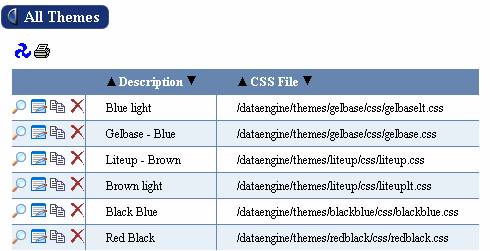
Figure 21-5 The screenshot above shows the view theme operation. This will display a list of themes available with WOW.
21.3.1 Dynamic Themes with URL Parameter
There may be the case where you have added multiple themes and want certain customers to open the application with a particular theme. Well you can do this dynamically by setting the theme to be used in the URL as a parameter.
For example... let’s say we have the following URL to an application: http://www.planetjavainc.com/wow/runApp?id=0
We can dynamically change this application's theme by specifying a parameter on the URL: _pj_theme=-5 or _pj_theme=-3 or any other theme id that exists shown in view themes screen. Note: a negative theme number indicates a system theme.
So for example...
http://www.planetjavainc.com/wow63/runApp?id=0&_pj_theme=-5 will open the application using the Light Brown theme.
http://www.planetjavainc.com/wow63/runApp?id=0&_pj_theme=-3 will open the application using the Light Blue theme.
The theme id is created when you add a new theme and can be seen in the view themes screen.
21.4 Keyed Values
This section allows you to manage keyed values, including possible values, configuration values, and user/error messages. Possible Values were discussed in detail in the Possible Values section of the WOW Feature chapter.
View Possible Values
With a keyed possible value, you specify a key, a value, and a display value for each PV. (The key is used to group the PV's together). Then in an FD (field descriptor) under the list of Possible Value Keys, you will see the keys of the Possible Values that you added. This is a separate PV option than using PV Operations - so there are two different ways to use PV's with WOW.
This displays a list of all of the Possible Value Keys that have been created. The size of the list will vary greatly depending on how many PV keys have already been set up on your version of WOW. The screenshot below shows a list of PV keys.
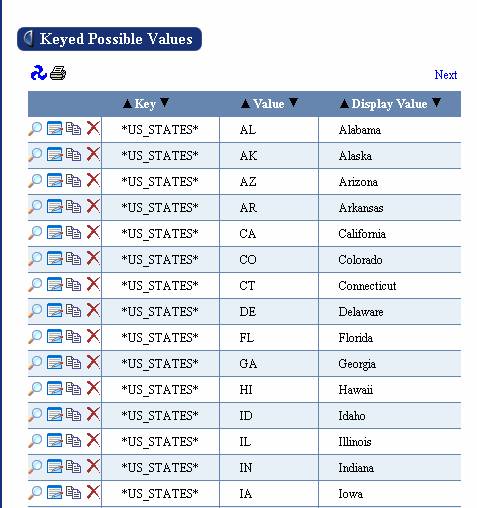
Figure 21-6 The screenshot above shows the available Keyed PVs with there value and description.
Add Possible Value
Adding a keyed Possible Value is much liking adding a user account or theme like described above. The figure below shows an example of the Add Keyed PV Operation.
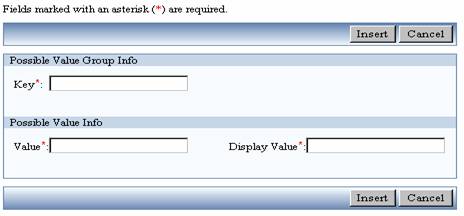
Figure 21-7 The screenshot above shows the Add Keyed PV Operation.
Group Information
Key – This is the Key that will be used with the Possible Values. Possible Value Keys were described in detail in Chapter 10 of this guide.
Value Information
Value – This is the value
given to a specific possible value. Generally numeric data is used for the
value when working with PVs but this is not required.
Display Value - This is the value displayed for the PV. This should
be as descriptive as possible making it easy for the user to understand the
value being used.
Additional Information
Display Order – ###
View Configuration Values
###
Add Configuration Value
###
Add User Message
User Messages provides the ability for you to supply your own messages to your WOW Applications. The User Messages section of the WOW utilities contains two operations, “Add User Message” and “View User Messages”.
The screen shot below shows the Add User Message screen. After adding the relevant information, simply hit the insert button to add the new user message.
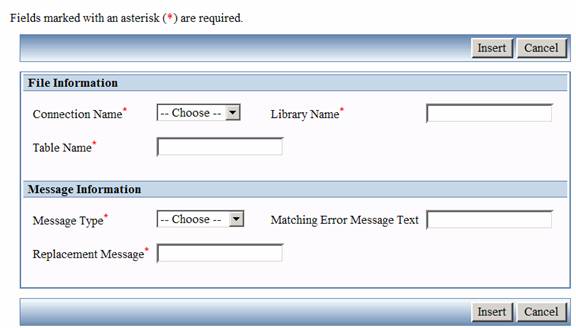
Figure 21-11 The screenshot above shows the Add User Message operation.
Message Information
- Message Type – This is the message type to override (insert, update, delete, etc.). This field is required.
- Matching Error Message Text – For error messages, this is the matching text from the original message that will be used to identify the specific message to replace. This field does not apply to the non-error message case and will be ignored. This field is optional. If this field is not specified in the error case, the user message will be used for all error messages of the specified message type. If you specify two messages of type "Delete Error" and the second entry leaves the matching text field blank, the first entry will be used when a match is found and the second entry will be used in all other cases for that message type.
- Replacement Message - This is the replacement message to be displayed. The message text can contain non-prompting parameters (ex. ??FLD1 or ???USERID). For more information on parameters, see the WOW Features chapter. This field is required.
NOTE: For performance reasons, the user message entries are read in once after the server is started. If message entries are changed after the server is started, you will most likely need to restart your server again to incorporate the new replacement messages.
File Information
- Connection Name – This is the connection alias used to access the table. This field is required.
- Library Name – This is the library that contains the table. A generic '*' (without the quotes) is allowed to represent all libraries. This field is required.
- Table Name – This is the table name that the message override applies to (for any insert, update and delete). This field is required.
View User Messages
This displays a list of all user messages that have been created.

Figure 21-12 The screenshot above shows the View User Messages operation.