|
Chapter 25 |
25. Troubleshooting and Debugging WOW
25.1 My iSeries DB2 files are locked by WOW which is affecting my saves and other programs.
OS/400 may apply a READ lock on files that are accessed more than once from the same connection. This is a function of OS/400 and is done for performance and is not caused by WOW. If you need to use and lock a file that OS/400 has locked use the following command:
ALCOBJ OBJ((QIWS/QCUSTCDT *FILE *SHRRD *FIRST)) CONFLICT(*RQSRLS)
*NOTE: Adjust the library and file name as well as the locking level to suit your needs.
25.2 WOW not able to connect IBM iSeries Metadata Server because of restricted ports.
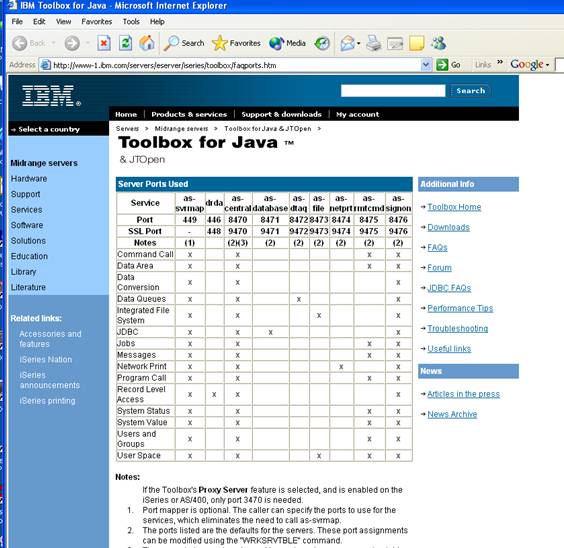
WOW can work with any metadata server. Every organization handles network controls and restrictions differently. If WOW is not able to connect to your server it may be caused by blocked ports. In the example of an iSeries machine there are numerous ports that need to be opened for full JDBC support that WOW uses, yet maybe your network administrator or firewall is blocking some of these ports. At IBM’s website you can go to this link http://www-1.ibm.com/servers/eserver/iseries/toolbox/faqports.htm shown below and see what ports need to be opened for full JDBC and server controls. Do the same for your system and have your network administrator allow these ports so that WOW can connect. On the iSeries WOW requires the following ports to be open (other databases use different ports, check your database documentation):
449
8470
8471
8476
25.3 Change User Name and Password of WOW for new metadata system
Switching metadata servers or types of servers will return some kind of error. If changing the Login that connects you to the metadata machine or server such as MySQL or iSeries, it is necessary to change the web.xml document located under <Apache Path>/Tomcat/webapps/wow60/web-inf/web.xml. Right click on web.xml and open with notepad. Shown below is the XML Tags that need to be changed.
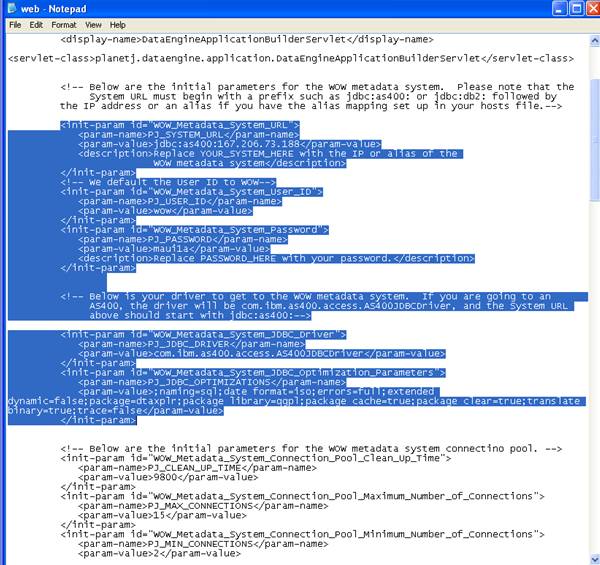
It is necessary to change the PJ_SYSTEM_URL, PJ_USER_ID and the PJ_PASSWORD initial parameter values.
As an example, the new login to the metadata system might be wow60 instead of wow. To access the metadata for WOW, change the init-param PJ_USER_ID value to wow60 instead of wow.
<init-param id="WOW_Metadata_System_User_ID">
<param-name>PJ_USER_ID</param-name>
<param-value>wow60</param-value>
</init-param>
Now, change the metadata system settings and logins without reinstalling WOW. If there are errors thrown about connection to the WOW metadata system then the web.xml document is a good place to look first.
25.4 Configuring Logging (Log4j)
As WOW runs, it logs events that are important. Some events are more important that others, so we made this logging configurable by modifying a property file in the wow folder. You may want to change the level of logging to a more verbose mode to see detailed or debugging information. In most cases, you will just want to log exceptions or events that cause WOW to error. By default, only events of levels WARN, ERROR, and FATAL are logged.
Log4J Configurations
Currently events can be logged at the following levels (listed in order of increasing severity): DEBUG, INFO, WARN, ERROR, and FATAL. You can also control where you want the log messages outputted to. You can direct them to Standard Out (stout), or a file (output.log) or both. By default we direct output to both stdout and output.log.
The master configuration file is called log4j.cnfg. You can find this file in the following directory: <TOMCAT INSTALL ROOT>\webapps\wow\dataengine\logging\ Refer to figure 18.1.
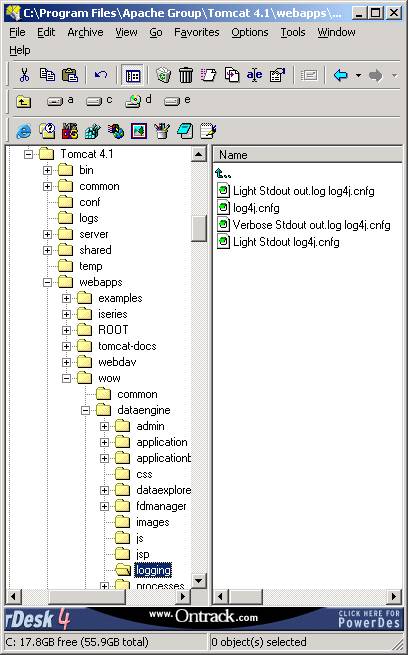
Figure 25-1 Directory to the log4j.cnfg file
For more verbose logging, try renaming the Verbose Stdout out.log log4j.cnfg file to log4j.cnfg. Likewise if you would like a less verbose logging level, rename one of the Light Stdout… files to log4j.cnfg. Make sure you keep the original log4j.cnfg file so you can always change it back. **NOTE** you will have to restart the Web server for the changes to take effect.
For more advanced logging techniques, see the following link:
http://jakarta.apache.org/log4j/docs/manual.html
WOW Log File (output.log)
If your log4j.cnfg is directing output to a log file, you can find that log file by searching for the file name set in the config file. By default, the file is named output.log and it can be viewed by looking in the Start Button shortcut where you click Start Tomcat. For example. Start Button => Programs => Apache Tomcat 4.1 =>output.log
25.5 Running a SQL Statement with Period in the name of a Database Table
WOW 6.0 does not support a period in any of the names of a table that are being modified by a SQL statement. For example SELECT * FROM PJDATA.EMPL.NM – where all the rows of EMPL.NM are being selected will not work. We suggest that you create a logical over “EMPL.NM” and give it a normal name such as “EMPLNM”.
25.6 When Running WOW off of a Linux or Unix machine and with MySQL, some operations don’t work
When running operations in on any UNIX machine and using MySQL as Metadata Server some of the operations are throwing errors or not working. This may be because MySQL running on a Unix System requires all library (schema names) and table name to be in UPPER CASE. Check to make sure all your files being accessed are in UPPER CASE and restart the MySQL Server.
25.7 When creating a row, the Current Date *CURRENT returns the wrong date
When inserting a new row, a default timestamp can be
obtained by putting *CURRENT in the FD of a Date Field. Unfortunately the time
might be off by either a time zone or just by hours, minutes or seconds. This
is normally a configuration issue from your OS/400 or JDK.
Instructions on how to correctly setup the time zone offsets are in IBM
Redbooks:
http://publib-b.boulder.ibm.com/Redbooks.nsf/RedbookAbstracts/tips0044.html?Open
Support Email Address:
Technical Support by Phone:
760.432.0600
WOW Frequently Asked Questions (FAQ):
http://www.planetjavainc.com/wow/runApp?id=209&_pj_lib=pjwowutil